How to Make a Clean Instrumental in Suno with Advanced Split
A practical test of Suno Advanced Split: how to rebuild a cleaner instrumental without obvious vocal artifacts, export aligned WAV stems, and finish the track in a DAW.
If you have ever tried to turn a finished song into a clean instrumental, you probably know the moment when everything goes slightly wrong. The full mix sounds convincing. Then you remove the vocal, and the backing track suddenly develops dents: guitars fade in and out, cymbals turn watery, the midrange collapses, and a faint ghost of the singer hangs around like someone who has not realized the party is over.
This is not uniquely a Suno problem. It is what happens when any separator tries to pull apart audio that has already been mixed. Vocals, guitars, keys, drums, and reverb all overlap. Separating them perfectly is a bit like removing raisins from a baked cake and expecting the sponge to look untouched afterward.
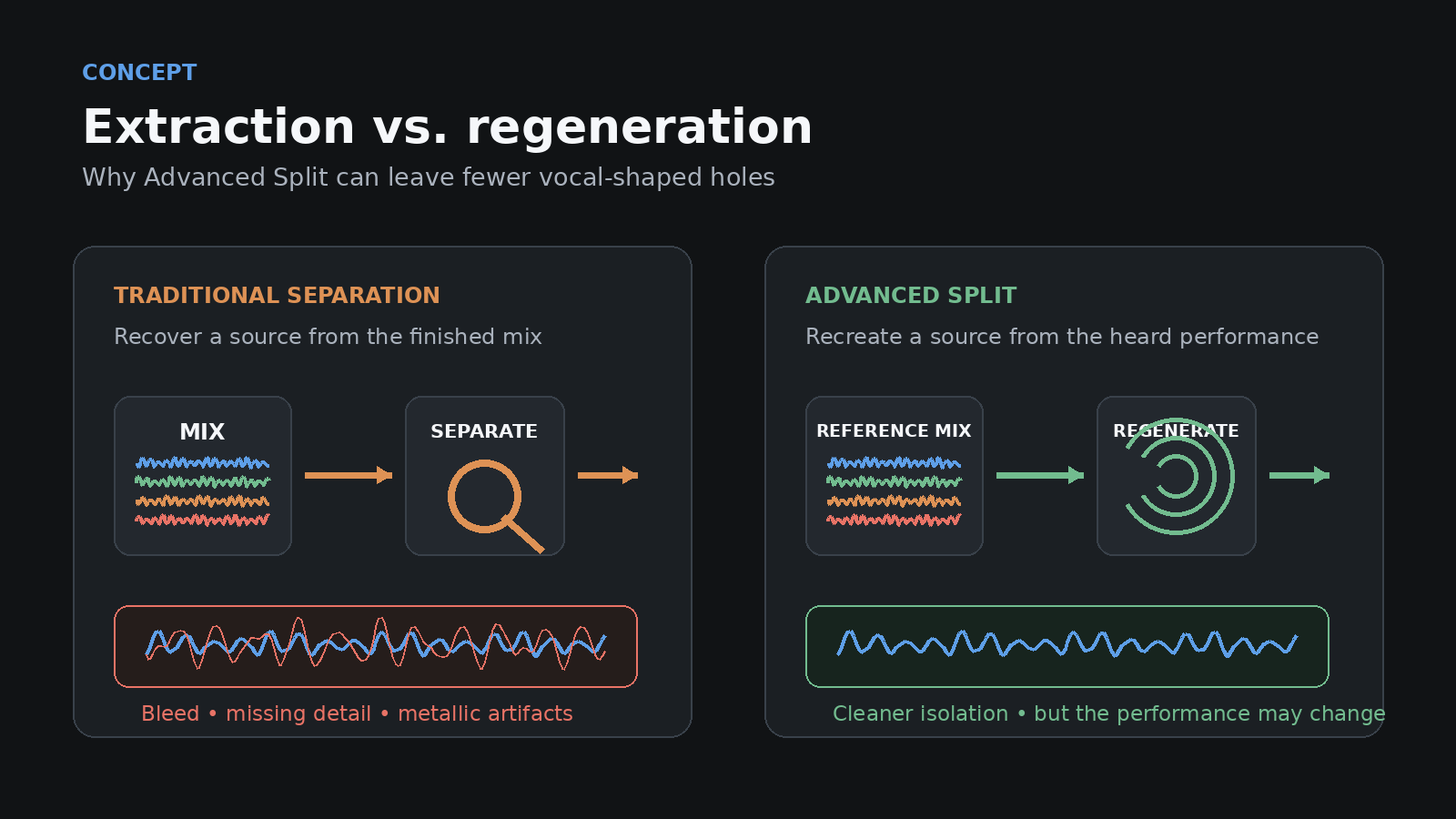
In June 2026, Suno updated its stem-separation tools and introduced Advanced Split. The important difference is that the selected part can be regenerated from the performance the model hears, rather than only carved out of the finished mix.
I tested the new workflow with one practical goal: building a usable instrumental without an obvious vocal-shaped hole in the arrangement.
The short version: there is still no magic button. There is, however, a workflow that gets much closer.
Contents
- 01.The short version
- 02.Why vocal removal damages the instrumental
- 03.What changed in Suno
- 04.My clean-instrumental workflow
- 05.Cleaning the stems after separation
- 06.What worked best in my tests
- 07.Suno or a third-party stem separator?
- 08.Bonus: remaster before splitting
- 09.Final checklist
- 10.Frequently asked questions
- 11.Conclusion
The short version
- •Traditional stem separation recovers sources from a finished mix, so bleed, missing detail, and metallic artifacts are common.
- •Advanced Split can regenerate selected parts, which often gives you cleaner raw material.
- •Split from Mix is useful when you need a quick vocal or backing track. For serious editing, separate instrument stems give you more control.
- •Treat the stems as production material, not as a finished mix. The best result comes from rebuilding the arrangement in a DAW.
- •In my tests, bass and full drum-kit stems were the most reliable. Individual kick and snare extractions were less predictable.
- •A muddy source will still produce muddy stems. Advanced Split is a tool, not a couples therapist for instruments that refuse to stay out of each other’s frequency range.
Why vocal removal damages the instrumental
A finished song is not a folder containing neat files called vocal.wav, guitar.wav, and drums.wav. It is one combined signal.
Lead vocals usually occupy the midrange, which is also where guitars, keyboards, snare detail, and many synths live. The vocal reverb and delay are blended into the same space as the rest of the arrangement.
A conventional separator analyzes that signal and estimates which parts belong to which source. If it removes too little, fragments of words and breaths remain in the instrumental. If it removes too much, pieces of the guitar, keys, and cymbals disappear with the voice.
That is where the familiar problems come from:
- •metallic ringing and shimmer;
- •instruments becoming dull whenever the singer enters;
- •unstable stereo width;
- •pieces of vocal leaking into the backing track;
- •cymbals, bass, or riffs appearing inside the acapella;
- •a stem mix that sounds flatter than the original song.
The reverse is equally true. If you need an isolated vocal, the result may contain hi-hats, bass resonance, guitar attacks, and reverb from the full mix. Same technical problem, different side of the glass.
What changed in Suno
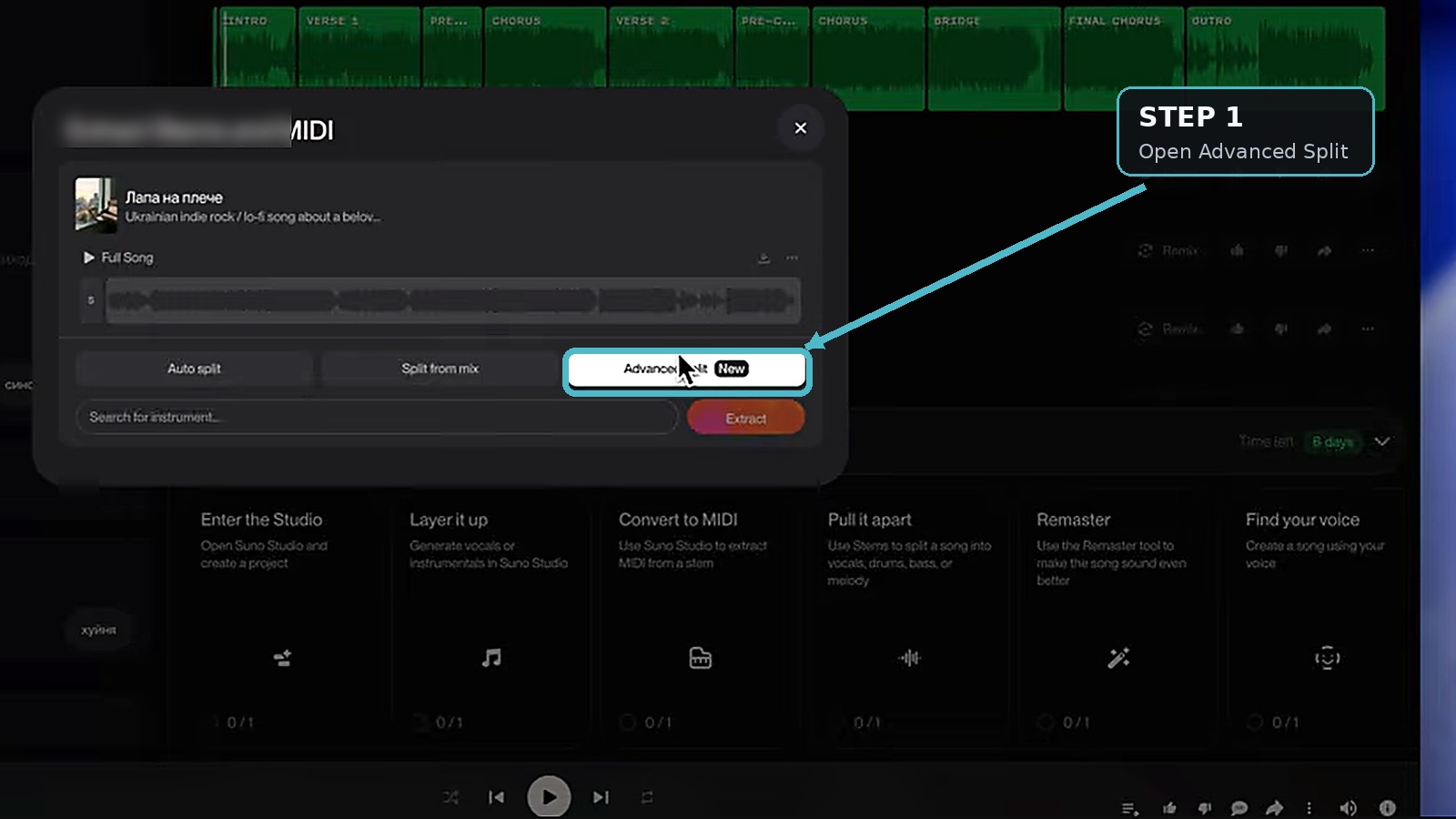
Suno now offers three stem workflows. They are designed for different jobs, so the most expensive option is not automatically the right one every time.
| Mode | What it does | Best use |
|---|---|---|
| Auto Split | Automatically separates up to 12 broad stem categories | Fast analysis and rough mixing |
| Split from Mix | Extracts one selected source and creates a complementary “everything else” stem | Quick vocals, bass, guitar, or a performance backing track |
| Advanced Split | Lets you request specific parts from a list of nearly 100 instruments | Detailed reconstruction and DAW production |
Auto Split
Auto Split is the quickest way to find out what Suno thinks is in the arrangement. It can create up to 12 stems for categories such as vocals, drums, bass, guitar, keyboards, and woodwinds.
I use it as reconnaissance. It tells me which parts the system detects and which existing stems may already be usable. The labels are not always perfect: a breathy synth may become a flute, and a flute may become something that sounds as if it needs its own passport.
Auto Split costs 50 credits for the full set.
Split from Mix
Split from Mix targets one source — for example, a lead vocal, bass, or guitar — and creates two files:
- 1.the selected source;
- 2.the rest of the mix without it.
For a quick rehearsal instrumental, that may be enough. The limitation is that the “everything else” file is still a combined mix. If one instrument collapses around the removed vocal, you cannot repair that instrument independently.
A selected extraction uses 10 credits, and the complementary stem uses another 10, for 20 credits in total.
Advanced Split
Advanced Split is available on Suno Premier. It lets you choose from almost 100 possible sources, ranging from a full drum kit and electric bass to specific strings, winds, and less common instruments.
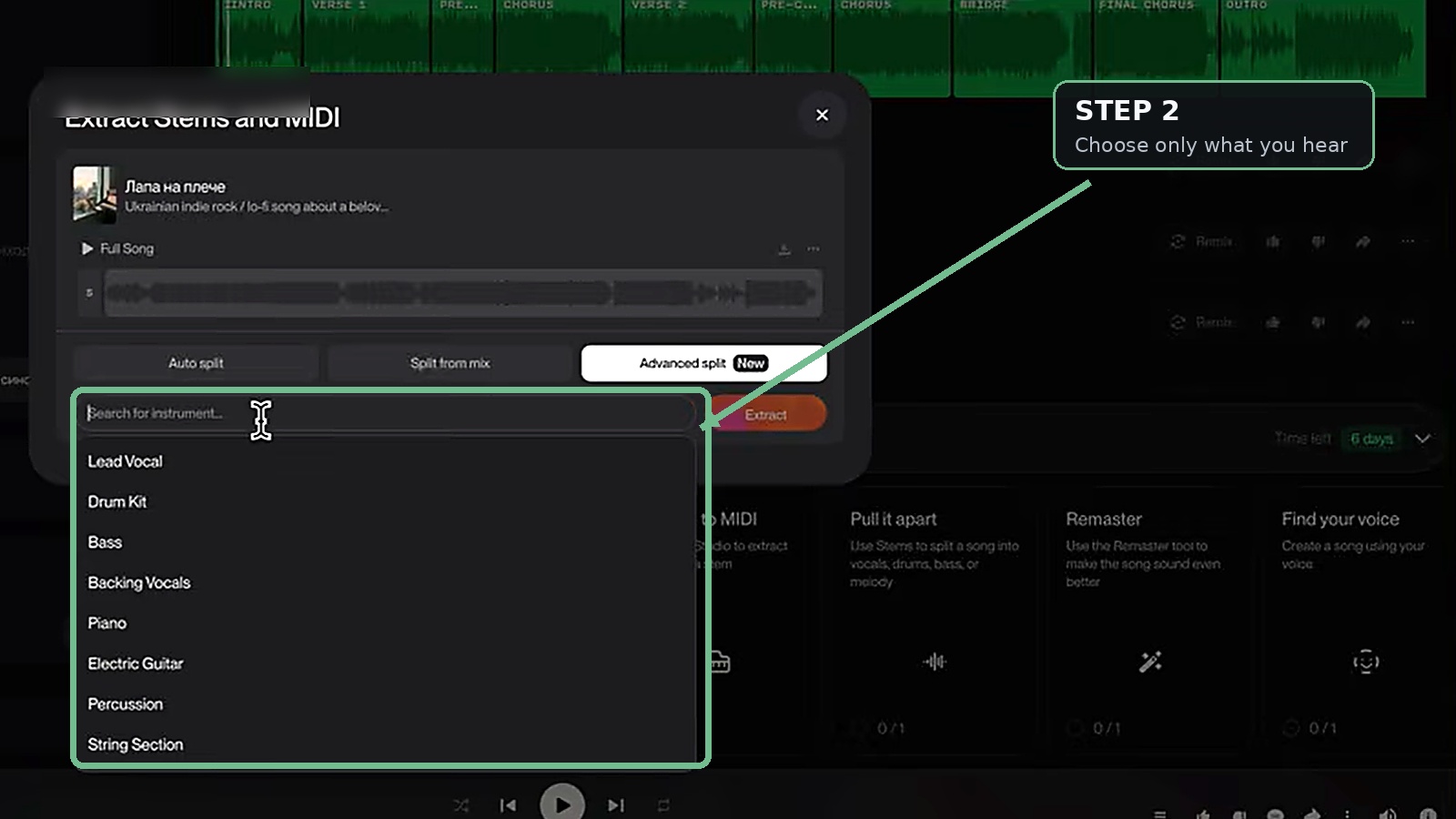
The major difference is that the requested stem can be regenerated from scratch based on the detected performance. It is not simply a frequency-shaped slice of the existing mix. That is why it can avoid some of the holes left by conventional vocal removal.
The word regenerated matters. The new stem is not guaranteed to be a sample-perfect copy. Suno may alter the tone, attack, rhythmic detail, or interpretation. It can also mistake a neighboring sound for part of the requested instrument.
In other words, Advanced Split can give you cleaner isolation, but it does not give you laboratory evidence.
There is another practical catch: requesting an instrument that is not present may still consume credits, even if the result is unusable. Run Auto Split first, listen carefully, and only then start ordering individual parts.
My clean-instrumental workflow
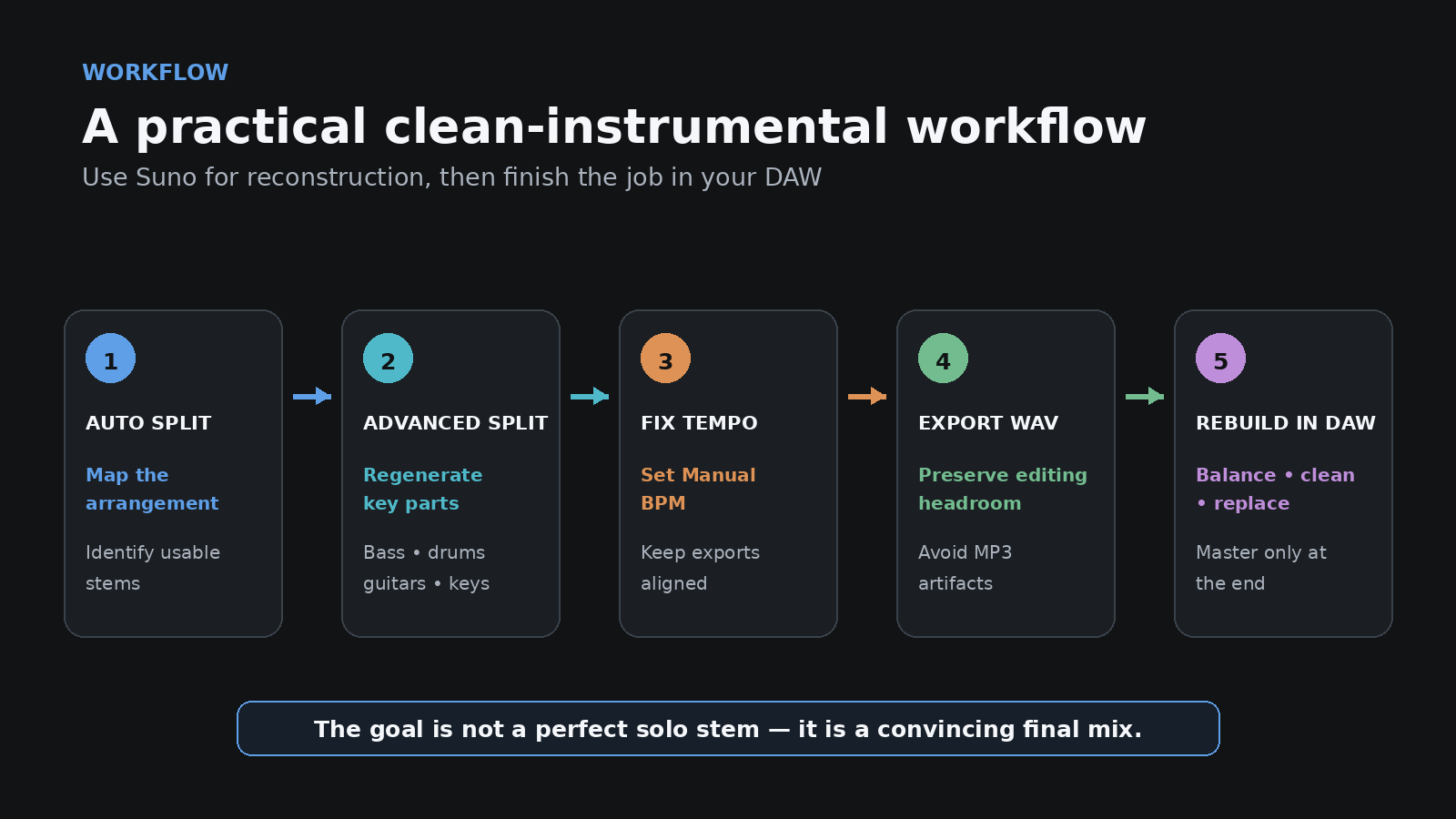
Step 1: Start with the best source you can get
Stem separation cannot rescue a weak generation. If the original is already cloudy, overloaded with reverb, or arranged like every instrument is fighting for the same chair, those problems will follow you into the stems.
When possible, plan for separation during generation:
- •leave some space in the arrangement;
- •keep the lead vocal clearly forward;
- •avoid huge reverb tails on every element;
- •do not make every section maximally dense;
- •give important instruments distinct roles and registers.
The clearer the arrangement, the easier it is for the model to identify what should be rebuilt. Prompting and structure tags are the levers that get you there — the complete Suno guide covers both.
Step 2: Use Auto Split as reconnaissance
I begin with Auto Split and audition every result. At this stage I am asking two questions:
- •What instruments did Suno detect?
- •Which stems have the least bleed and damage?
One of the most useful pieces of advice from community stem guides is not to search for the mythical “best separator.” Instead, choose the particular result that preserves the most important part of that particular song.
If the song is driven by the vocal, judge the vocal stem first. If the hook is a bass riff, protect the bass. If the entire track depends on one guitar texture, that guitar is the priority.
Sometimes several Auto Split stems are already good enough. There is no prize for regenerating a part that does not need fixing.
Step 3: Regenerate the key instruments
For a serious instrumental, I do not rely on a single “everything except vocals” file. I request the main elements separately:
- •bass;
- •full drum kit;
- •guitars;
- •piano or keyboards;
- •synths;
- •strings or winds, if they are clearly present.
This gives me control over the reconstruction. If the piano is weak, I can regenerate, replace, or lower the piano without rebuilding the entire backing track.
I would not base the whole workflow on isolated kick, snare, and cymbal extractions yet. Sometimes they work. Other times, three different requests produce three slightly different versions of the same complete beat. A full drum-kit stem is usually the safer starting point.
Step 4: Export WAV stems with Fixed tempo
Generated music can contain tempo drift — small changes in timing similar to a live performance. That can sound natural in the full song, but it becomes awkward when you move stems onto a rigid DAW grid.
In the current download dialog, choose WAV and select Fixed tempo when you want a steady average BPM for simpler editing.
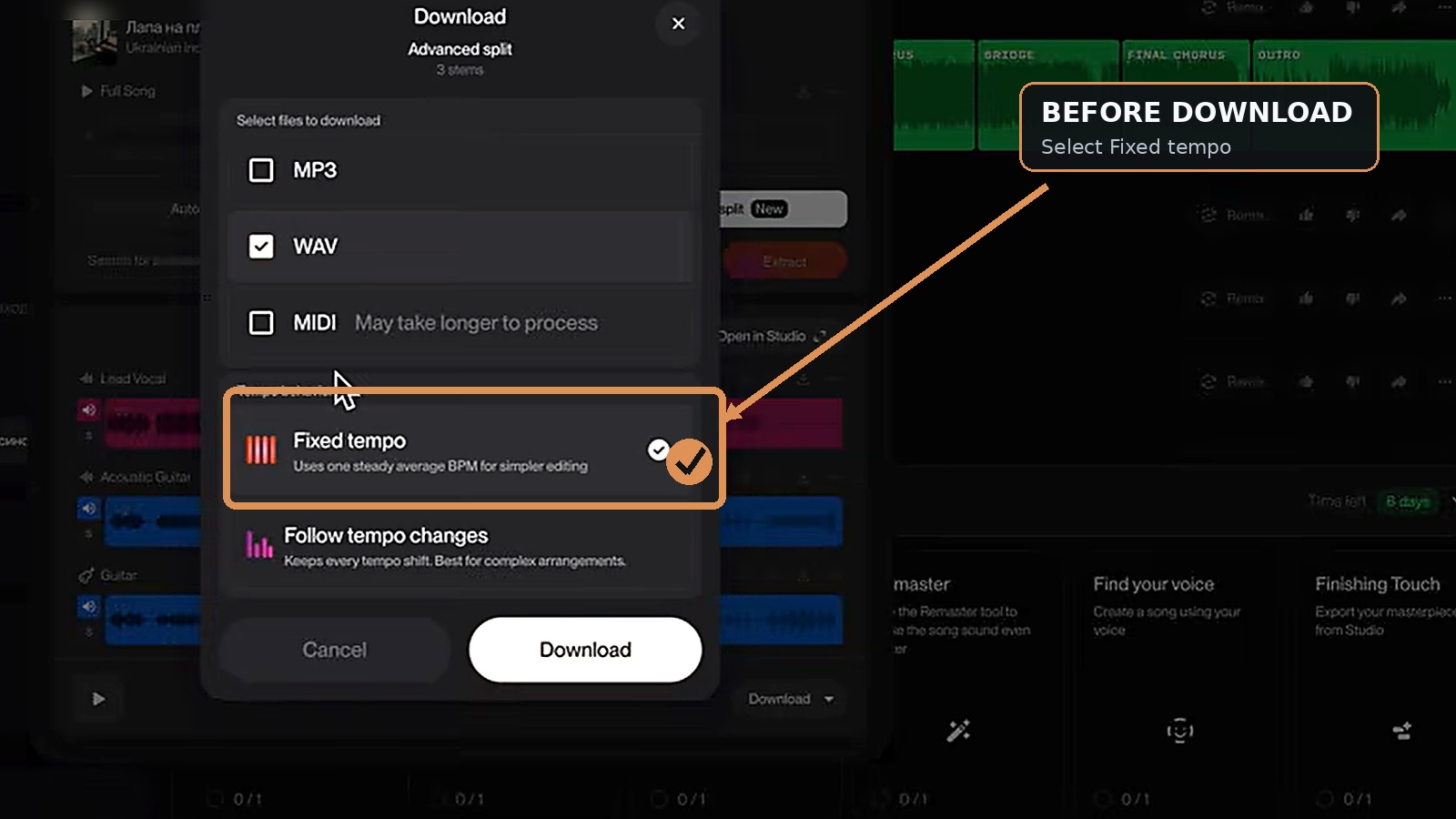
Fixed tempo is not automatically “better.” It is a workflow choice. If the original performance depends on intentional pushes and pulls, Follow tempo changes may preserve the feel more faithfully. For rebuilding a backing track, adding programmed drums, or replacing instruments, Fixed tempo is usually easier.
Use WAV rather than MP3. Compression artifacts may be fairly quiet in the full mix, but EQ, saturation, and repeated exports have a habit of introducing them to everyone in the room. The same export rules apply to ordinary Suno projects — the Suno Studio guide walks through stems, WAV and BPM before they reach the DAW.
Step 5: Rebuild the track in a DAW
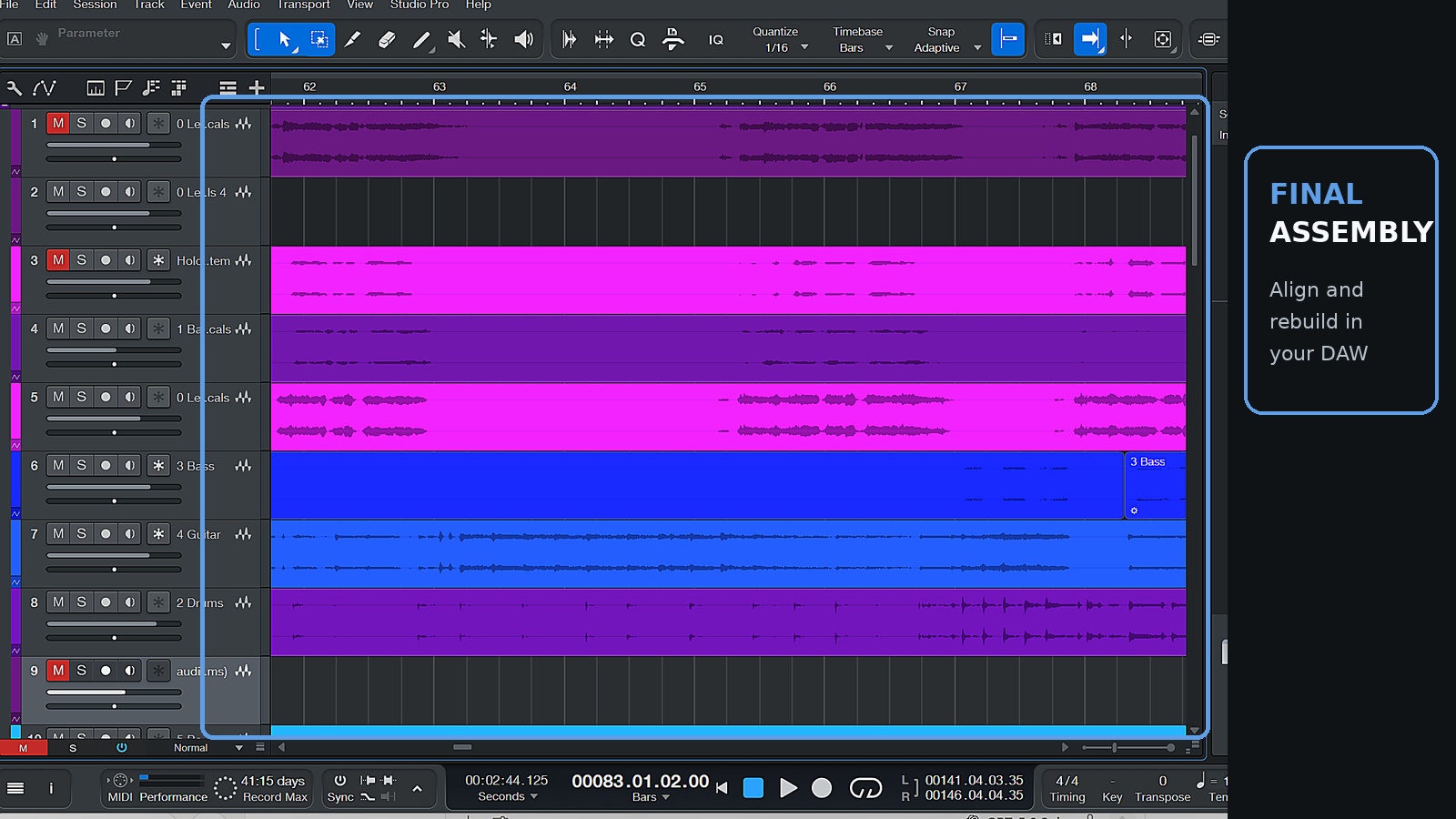
Import every stem from the same starting point and check the transients against the grid. Then audition the tracks both in solo and in context.
A stem that sounds ugly on its own may work perfectly in the mix. The opposite is also true: a beautiful solo stem can occupy half the spectrum and ruin the combined result. If the rebuild turns into writing new parts rather than balancing existing ones, you have crossed into arrangement and music production.
My order is simple:
- 1.align the files;
- 2.build a static volume balance;
- 3.clean obvious artifacts;
- 4.replace weak parts if necessary;
- 5.add automation and effects;
- 6.master only after the mix works.
Cleaning the stems after separation
Advanced Split reduces some problems, but it does not cancel ordinary production work. Several practical techniques shared by Suno users are genuinely useful.
Drums
Separated drums often sound washed out, especially in the upper mids. Try:
- •using a dynamic EQ to control harsh buildup;
- •applying gentle compression to tame peaks;
- •replacing a weak kick or snare with samples;
- •replacing the full rhythm layer while keeping the original stem quietly underneath for texture.
That last option is not especially romantic, but it works. Sometimes the best way to repair the drums is to stop repairing the drums.
Bass
A useful technique is to duplicate the bass stem:
- •keep one copy for the low end and make it mono;
- •use the second copy for midrange character.
Low-pass the sub-focused copy. On the midrange copy, remove unnecessary sub energy and gradually cut the highest artifact-heavy frequencies. If the bass loses definition, a little saturation can rebuild audible harmonics.
Use drum sidechain carefully. Suno bass often already contains rhythmic movement from the original generation. Heavy sidechain on top of that can turn the bass into a nervous air pump.
Guitars, synths, and keyboards
These stems often benefit from:
- •removing unnecessary low end;
- •gently limiting the extreme top end;
- •a low-threshold gate;
- •narrow EQ cuts for metallic resonances;
- •volume automation around the worst artifacts.
Do not try to make every stem gorgeous in solo. Keep the part of the spectrum that carries the instrument’s identity and remove what interferes with the final mix.
Vocals
The same workflow works in reverse when you need an acapella. Check breaths and word endings, sibilance, cymbal bleed, reverb tails, and syllables that become thin or disappear.
De-click, de-crackle, and de-reverb tools can help, but aggressive processing may remove quiet consonants and breathy detail. Several gentle passes are safer than one pass with a digital sledgehammer.
Mix bus
Once the reconstruction is balanced, a dynamic EQ or resonance suppressor can calm harsh upper-mid frequencies. Multiband compression can hold unstable areas in place.
But the old rule still applies: mastering makes a good mix feel finished. It makes a bad mix louder. If a note is missing from a stem, no mastering preset is going to remember it on your behalf.
None of this is special to AI stems. It is ordinary professional mixing and mastering work — Advanced Split changes the raw material you start from, not the craft that follows it.
What worked best in my tests
The most consistent results came from bass, full drum-kit stems, relatively simple synth parts, and instruments with a clear timbre and an obvious role in the arrangement.
The more difficult cases were piano and guitar occupying the same register, long dense reverb, several similar synth layers, individual drum components, and choruses where everything plays at once — including what may or may not be an imaginary food processor.
Instrument recognition also misses occasionally. A requested flute may return as a breathy synth. That is not always a simple labeling error: the generated sound may genuinely sit somewhere between the two, and the model has to pick a side.
Suno or a third-party stem separator?
Before Advanced Split, many users recommended downloading the full WAV and processing it with tools such as Ultimate Vocal Remover 5, Demucs, MVSep, BS Roformer, MelBand Roformer, Moises, and Kits AI.
Those tools are still useful. One separator may win on vocals, another on drums, and a third on one very specific song for reasons known only to the machines.
The practical difference is:
- •a conventional separator tries to recover sources from existing audio;
- •Advanced Split can regenerate a requested source;
- •replaying or replacing the part gives you the most control but takes the most work.
A hybrid approach is often best. You might use a Roformer vocal, an Advanced Split bass, sampled drums, and an Auto Split guitar. That is not cheating. That is production.
Bonus: remaster before splitting
If the source track feels flat, try creating a remastered version before extracting stems. A different render may improve depth and make individual parts easier to identify.
Do not automatically replace the original. Remastering can change tone, balance, and arrangement details. Make a few versions and compare them at matched loudness. If one version is merely louder, it has not necessarily become wiser.
Matched loudness is the only honest way to judge the difference, because louder simply reads as better to the ear. It is the same reason loudness normalization on Spotify humbles so many competitive masters.
Final checklist
- 01.Start with the clearest source mix you can produce.
- 02.Run Auto Split and confirm which instruments Suno detects.
- 03.Do not spend credits on instruments you cannot actually hear.
- 04.Use Split from Mix for a quick backing track.
- 05.Use Advanced Split for a detailed reconstruction.
- 06.Prefer a full drum-kit stem unless you genuinely need isolated drum pieces.
- 07.Select WAV and Fixed tempo for grid-based DAW editing.
- 08.Import every stem from the same start point.
- 09.Balance first; apply EQ and compression second.
- 10.Replace a stem when repairing it costs more than recreating it.
- 11.Compare Suno with at least one external separator on important tracks.
- 12.Master only after the rebuilt mix works without the master chain.
Frequently asked questions
Can Suno remove vocals completely?
It can produce a much cleaner instrumental, especially when Advanced Split is combined with manual reconstruction. It cannot guarantee that every regenerated instrument will match the original arrangement perfectly.
Which mode should I use for a backing track?
Use Split from Mix for a quick rehearsal or performance version. Use Advanced Split and a DAW when you need control over individual instruments, recording your own vocal, or preparing a more polished production.
Why does the instrumental still have holes after vocal removal?
Vocals overlap with other instruments in both frequency and ambience. A traditional separator may remove shared musical information along with the voice. Advanced Split attempts to avoid that by rebuilding the surrounding parts.
Do I need a paid Suno plan?
Yes. Auto Split and Split from Mix are available on paid plans. Advanced Split is available to Premier subscribers.
Should I choose Fixed tempo or Follow tempo changes?
Choose Fixed tempo when you want a steady grid for editing, replacing drums, or adding MIDI instruments. Choose Follow tempo changes when preserving the source performance's timing movement is more important.
Can mastering remove stem artifacts?
Mastering can reduce harshness, control dynamics, and make the mix more cohesive. It cannot reconstruct missing notes or remove heavy bleed. A badly damaged stem may need to be regenerated, replaced, or replayed.
Can I use the same method to isolate vocals?
Yes. Advanced Split can regenerate a vocal stem as well. The result may still need manual cleanup in dense sections or where the original contains long reverb tails.
Conclusion
Advanced Split is not a “make it perfect” button. It is a shift from destructive removal toward reconstruction.
For a quick karaoke or rehearsal track, Split from Mix may be enough. For recording a new vocal, performing live, or continuing production, the stronger method is to separate the main parts, export aligned WAV files, and rebuild the song in a DAW.
It takes longer. The reward is an instrumental that no longer sounds as if someone removed the singer along with a section of wallpaper.
Sources and further reading
Rebuilt your stems and the mix still fights you?
Send the track and hear a free 60-second preview — an honest assessment and an exact price, no commitment.
Get a Free Preview →Want your track to sound like this?
Send it in and get a free preview — hear the difference on your own song before you pay anything.
Get a free preview →