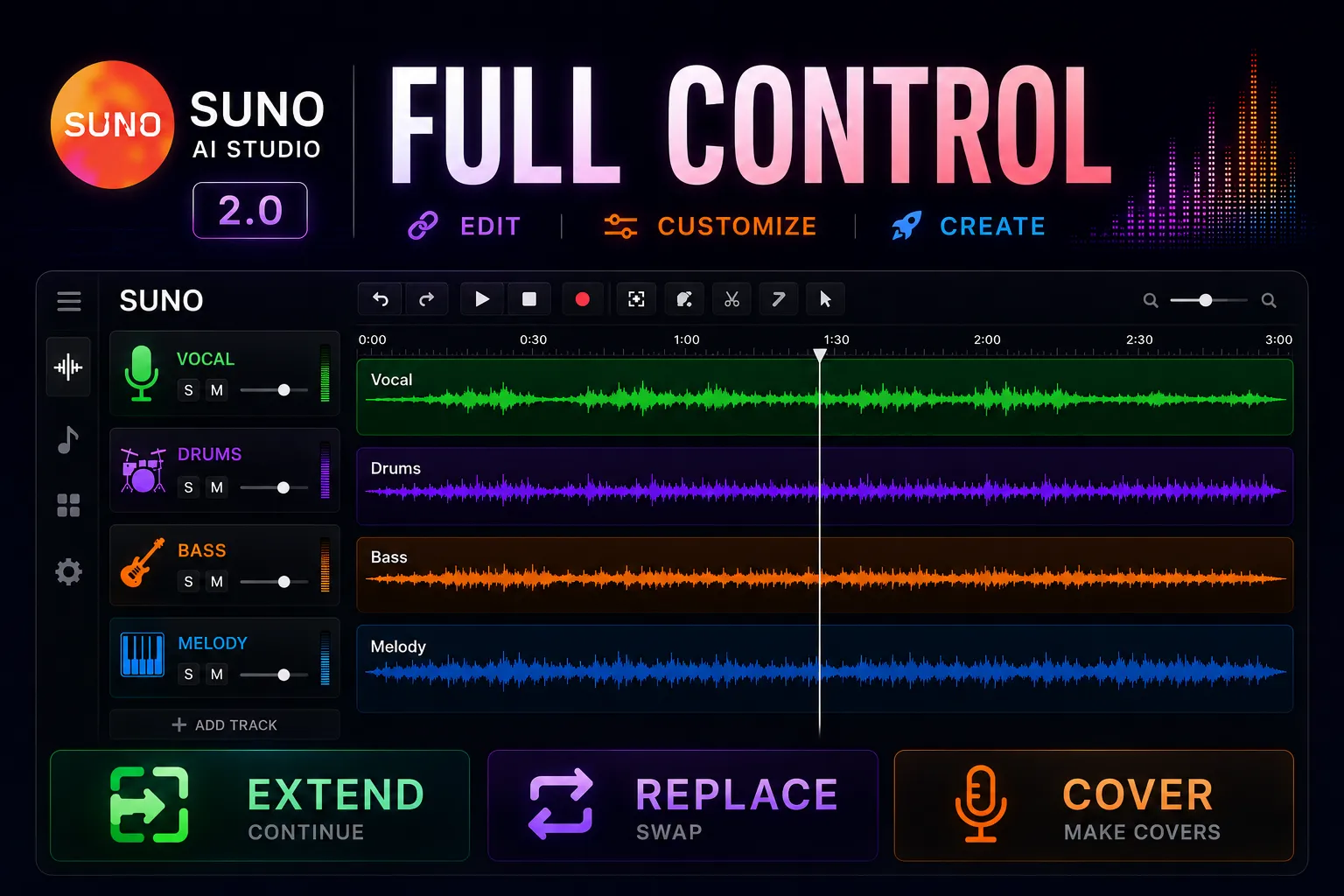
Suno AI Part 2: Suno Studio — Complete Guide for Musicians
Part one was about generating better material. This one is about what happens after. Suno Studio sits between Generate and your DAW — the place where a good idea stops being random and starts becoming usable.
Who this guide is for
For anyone who has made a few tracks in Suno and realized the real problem is not inspiration — it is control. For musicians who want repeatable results, not a coin flip. That part is fixable.
Haven't read Part 1 yet? Start with Suno AI: Complete Guide — Genres, Tags & Prompts 2026.
Contents
- 01.What Suno Studio is — and what it's NOT
- 02.The Timeline — your main instrument
- 03.Extend — the button that turns ideas into songs
- 04.English tags for Extend
- 05.The G.M.I.V. Formula — prompts like a pro
- 06.Cover & Replace — surgical fixes
- 07.The Mixer — draft mode, not the finish line
- 08.Field Notes from the Community
- 09.Export — the final step with hard rules
Three stages of the kitchen
Studio is the middle stage: where ideas get structured before the real finishing work begins in a DAW.
What Suno Studio is — and what it's NOT
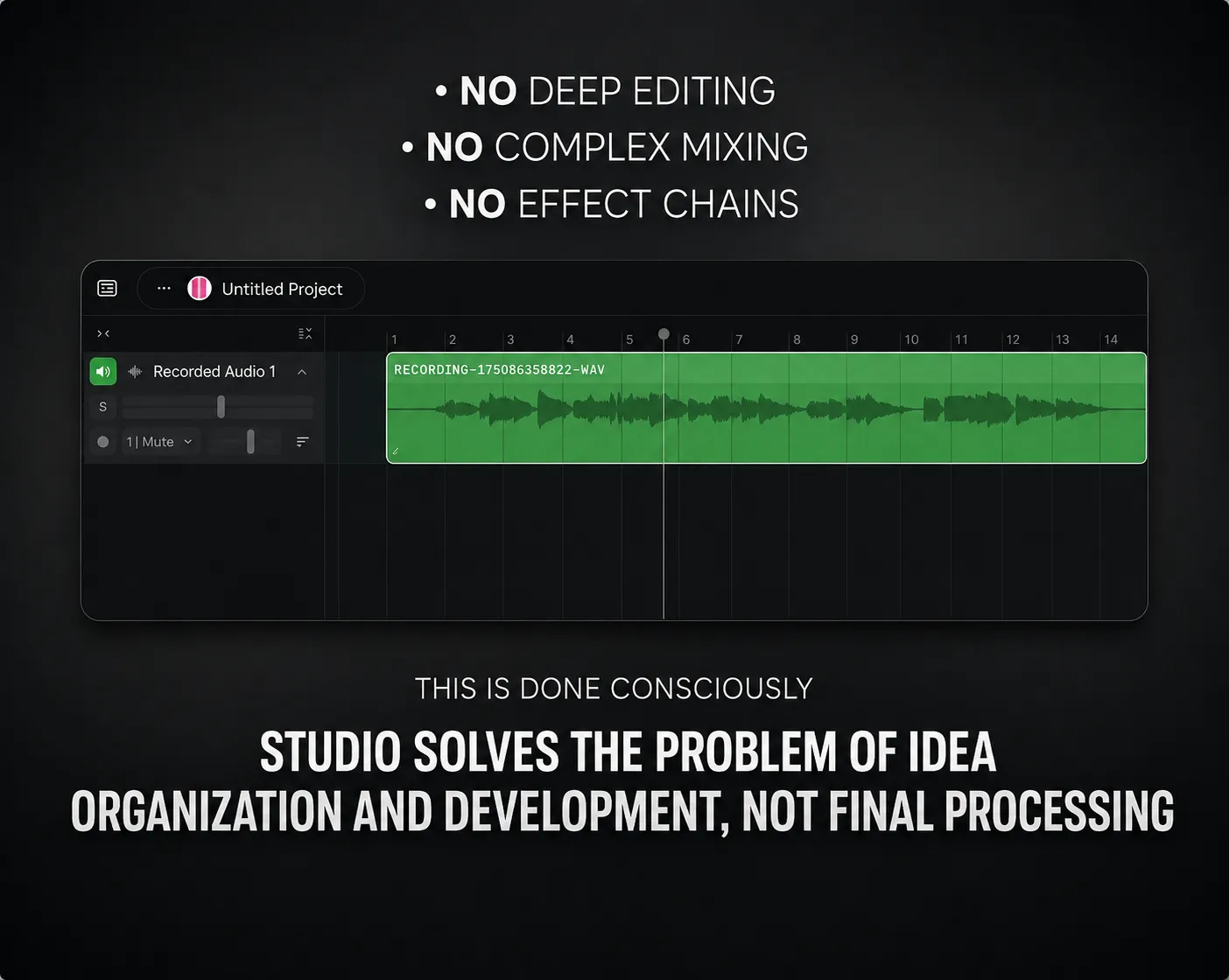
Suno Studio is not Generate with a bigger toolbar, and it is not a DAW in disguise. It is the stage between getting raw material and opening a real editor.
Generate
Creates raw material. A pencil sketch on a napkin. The idea that still needs to become something.
Studio
Organization and development. The director's table — you can see the structure and make real decisions.
DAW
The finish line: mixing, mastering, polish. The final manuscript after the editor.
Studio deliberately does not copy a DAW. There is no deep editing, no complex chains, and no engineer-grade finishing toolkit here. That is the point. Its job is simpler and more useful: organize the idea before you polish it somewhere else.
Without Studio, generation remains a pile of lucky and unlucky attempts. With it, you can stop on the useful moments, extend with intention, and bring something structured into your DAW instead of another random draft.
Studio keeps leveling up — Studio 1.2
In February 2026 Suno shipped Studio 1.2, and it quietly closed several gaps this guide used to warn about: Remove FX (strips baked-in reverb and delay from a stem — huge for vocals), Warp Markers (drag timing into place when a generation drifts off-grid), Time Signature support (finally, something other than 4/4), and Alternates (generate variants of a section and swap between them without losing the original). None of these replace a real DAW — but Remove FX alone saves you one paid plugin down the line.
Made a track in Suno? I'll finish it to release quality — from $39.
The Timeline — your main instrument
At the heart of Suno Studio is the timeline. That is where the track stops feeling like one blob and starts revealing structure.
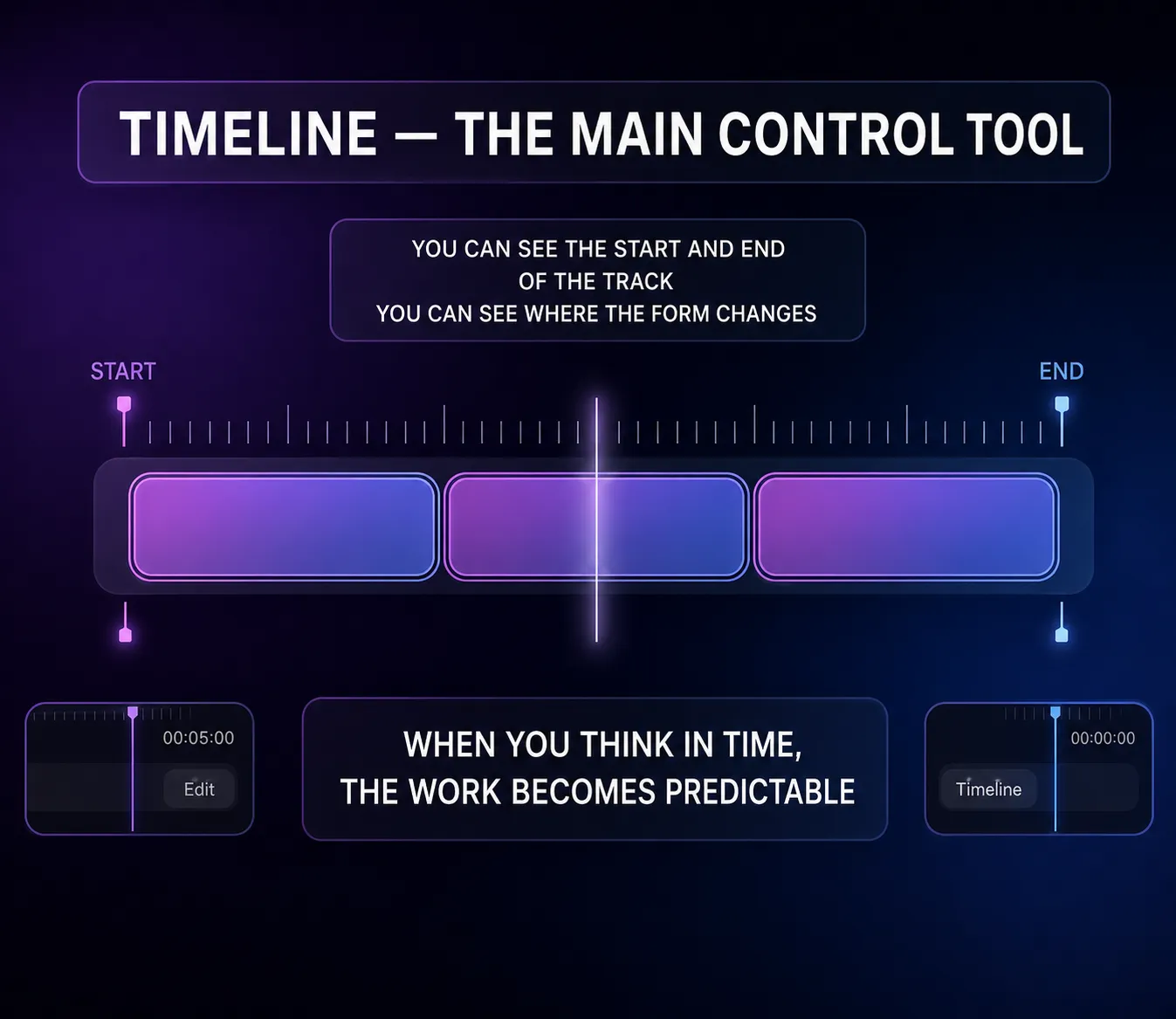
You see the overall shape, the clips, the layers, and the transition points. That is the key shift: you stop treating the track like one big audio file and start treating it like a set of parts you can judge one by one.
🔭 Wide view
See the full shape of the track and judge the overall arc. Does the idea actually work?
🔬 Close view
Examine transitions, pauses, edit points. Where exactly should you set the Extend timestamp?
Use both views. Without the wide one, you can't tell if the idea holds together. Without the close one, you won't find the right place to extend. Once you start thinking in timelines, everything becomes predictable.
Extend — the button that turns an idea into a song
If Create gives you the idea, Extend is what turns it into a full track. It's the most powerful tool in Studio — and the one most consistently misused.
What the model hears when you press Extend
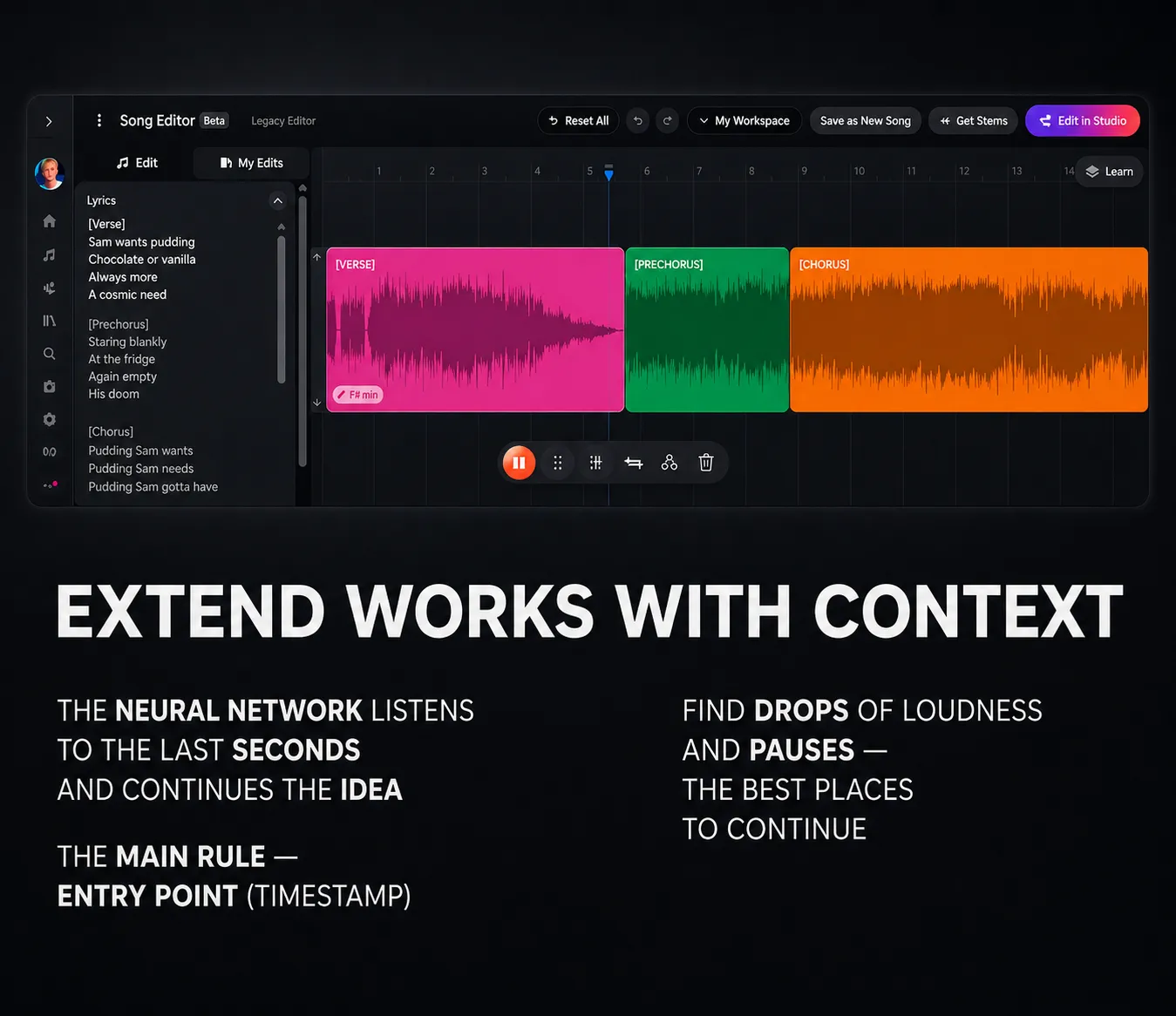
"Listen to the last few seconds of this section, understand the context, and figure out what should come next. Preserve the key and BPM."
The one rule: the timestamp
The most common beginner mistake is pressing Extend wherever. The result: the track falls apart — the voice changes, the rhythm breaks, the song wanders off somewhere nobody intended.
🚫 What not to do
- → Cut in the middle of a word — the model will hallucinate
- → Pick a random spot without reading the waveform
- → Press Extend without updating the Lyrics field
✅ What to do instead
- → Find the end of a bar
- → Find where the reverb tail fades out
- → Find the pause after a chorus
Pro Tip
Look at the waveform on the timeline and find the visual dips in loudness — those are your ideal cut points. Where it goes quiet, that's where you cut. This rule applies in Suno Studio, in your DAW, and in editing generally.
Block logic: Part 1 → Part 2
In Studio you see a chain: Part 1 → Extend → Part 2. One rule to remember:
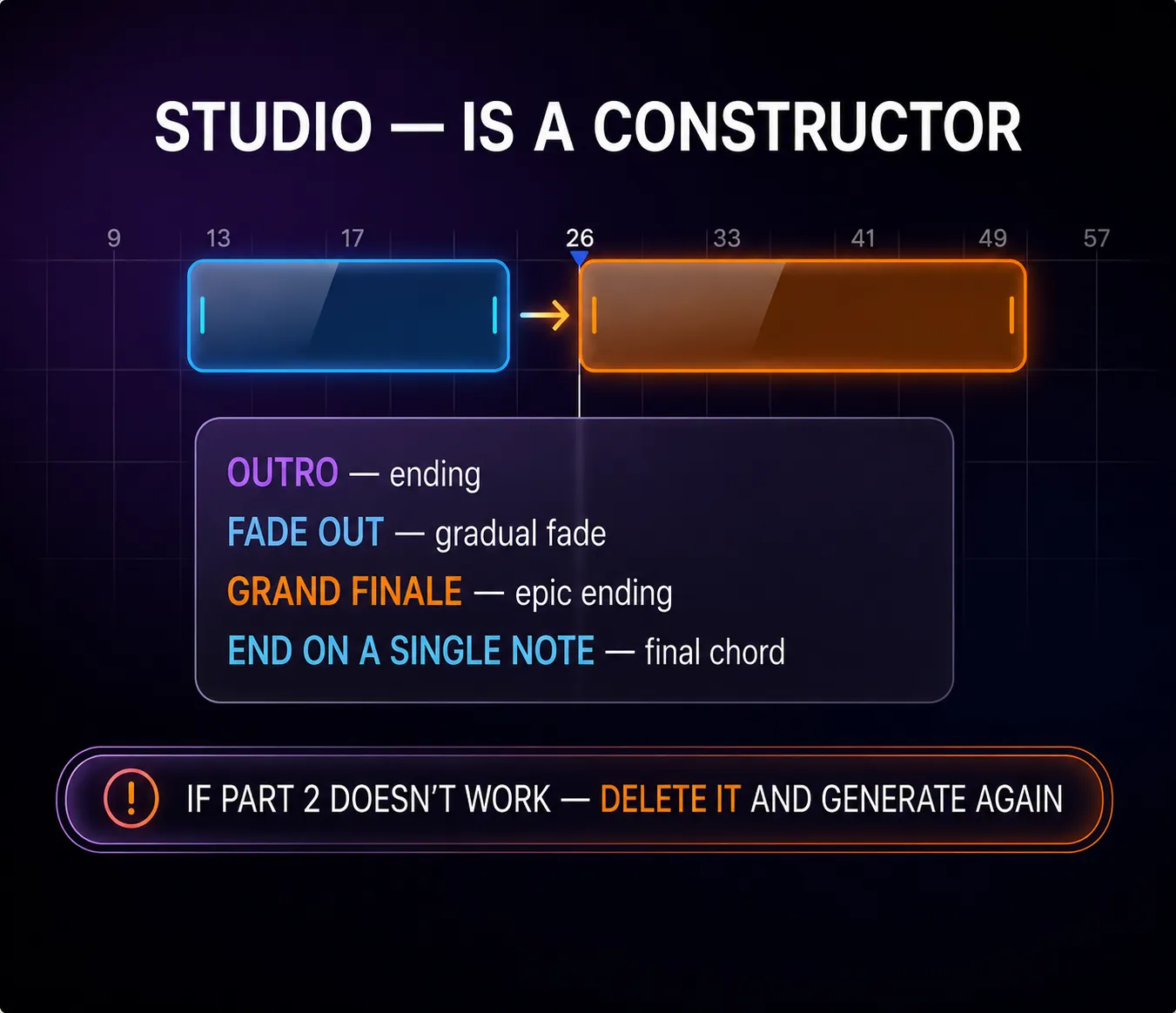
The block rule
If Part 2 isn't working — don't try to fix it with another Extend. Delete it and regenerate from the end of Part 1. If a part comes out wrong, we don't sand it down forever — we get a new one.
Checklist before pressing Extend:
Is the timestamp right — no mid-word cuts?
Has the old Lyrics text been cleared and replaced with something new (or at least a [Instrumental] tag)?
Is the Style field filled with English descriptors?
The G.M.I.V. Formula — prompts like a pro
One principle before the formula: Suno does not interpret your feelings — it works with tags. If you write like a poet, you get randomness. If you write like a spec sheet, results become far more predictable.
Hard rule: write prompts in English. Even if your song is in another language, the Style of Music field must be in English — that's the data Suno trained on. "Sad violin" — Suno gets the gist, with margin for error. Melancholic Violin Solo — understood precisely. The difference between "bring me something to eat" and "oat milk cappuccino, medium, extra shot."
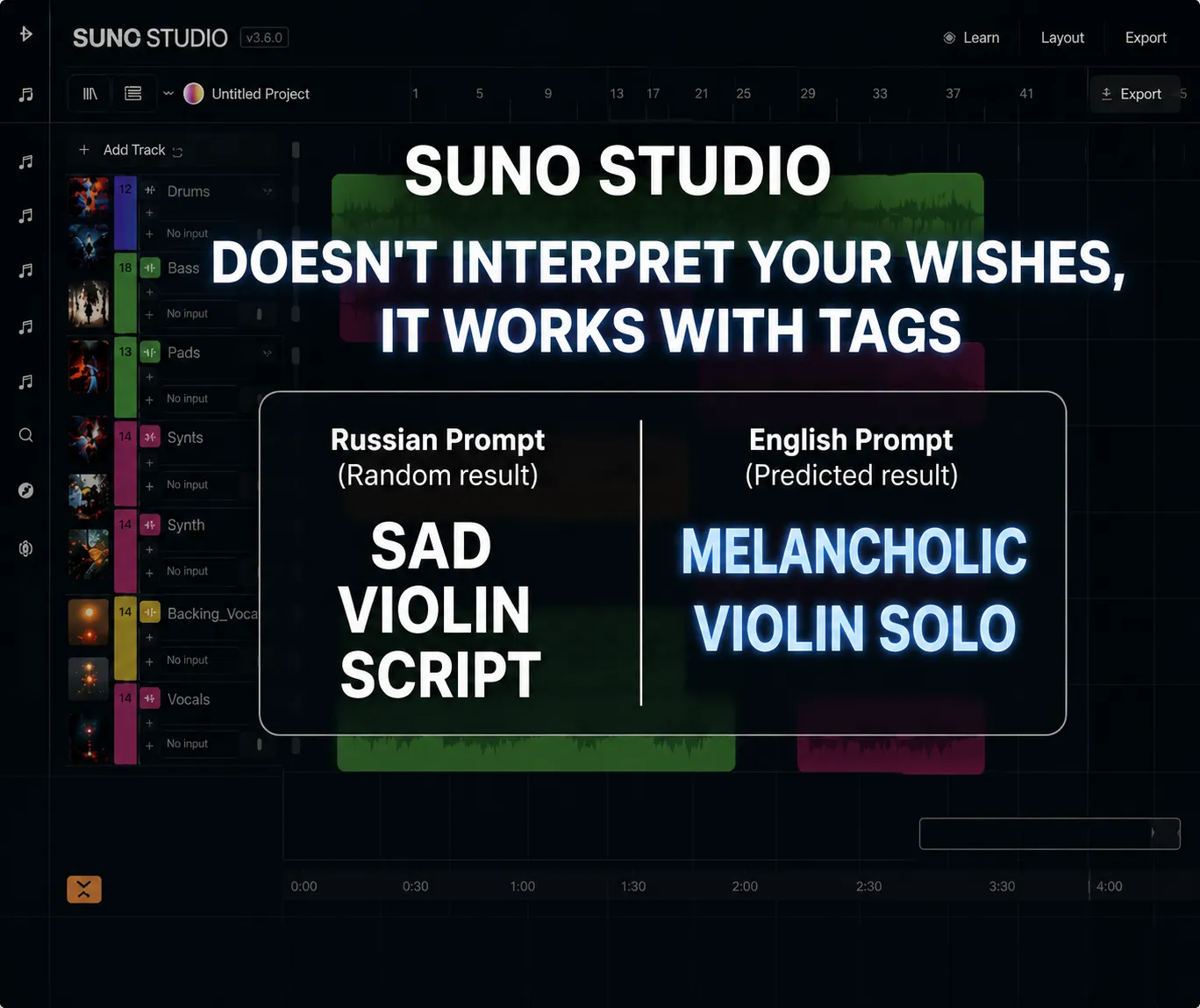
The G.M.I.V. formula — four components
G — Genre
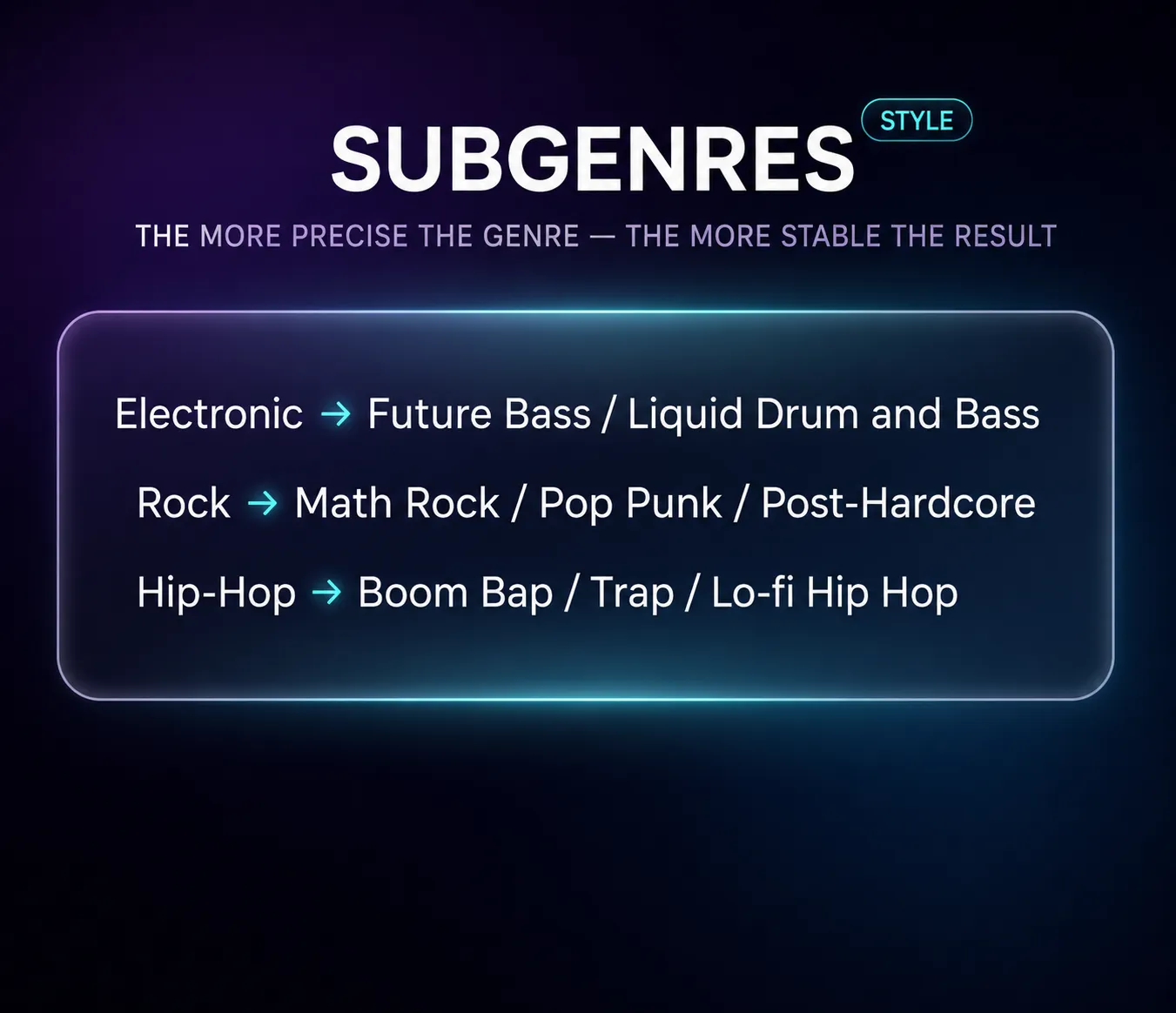
Don't just write Rock or Pop. Use subgenres — they narrow the search space and produce consistent results:
| Instead of… | Write… |
|---|---|
| Electronic | Future Bass / Liquid Drum & Bass |
| Rock | Math Rock / Pop Punk / Post-Hardcore |
| Hip-Hop | Boom Bap / Trap / Lo-Fi Hip Hop |
M — Mood
Beginners describe how they feel instead of using musical descriptors. The model doesn't need to know what you're feeling — it needs the atmosphere in technical terms:
"soulful"
Ethereal
"angry"
Aggressive
"joyful"
Euphoric
"dark"
Dark
I — Instruments
Name exactly what should be playing. This gives the track its substance:
V — Vocals
Leave it unspecified and Suno picks randomly. Take control:
G.M.I.V. Prompt Builder
Pick your tags — the prompt builds itself
Ready prompt
← Choose at least one tag on the left
✕ Weak prompt
"Beautiful love song with piano, kind of sad"
This is a wish. Suno guesses.
✓ Strong prompt
RnB, Soul, Sentimental Mood, Grand Piano, Minimal Drums, Female Emotional Vocals, Slow Tempo, 80 BPM
This is a spec. Suno executes.
Pro Tip
Suno responds better to comma-separated tags than to full sentences. Bad: "Make a song that sounds like it is raining outside." Good: Rainy atmosphere, Lo-Fi. Short, clear, precise.
Cover & Replace — surgical fixes without the pain
Great track, but the vocalist swallowed a word in the middle or the drums drifted off-beat. The old answer was to regenerate everything from scratch. In Studio, you fix it precisely. Two tools, two different jobs.
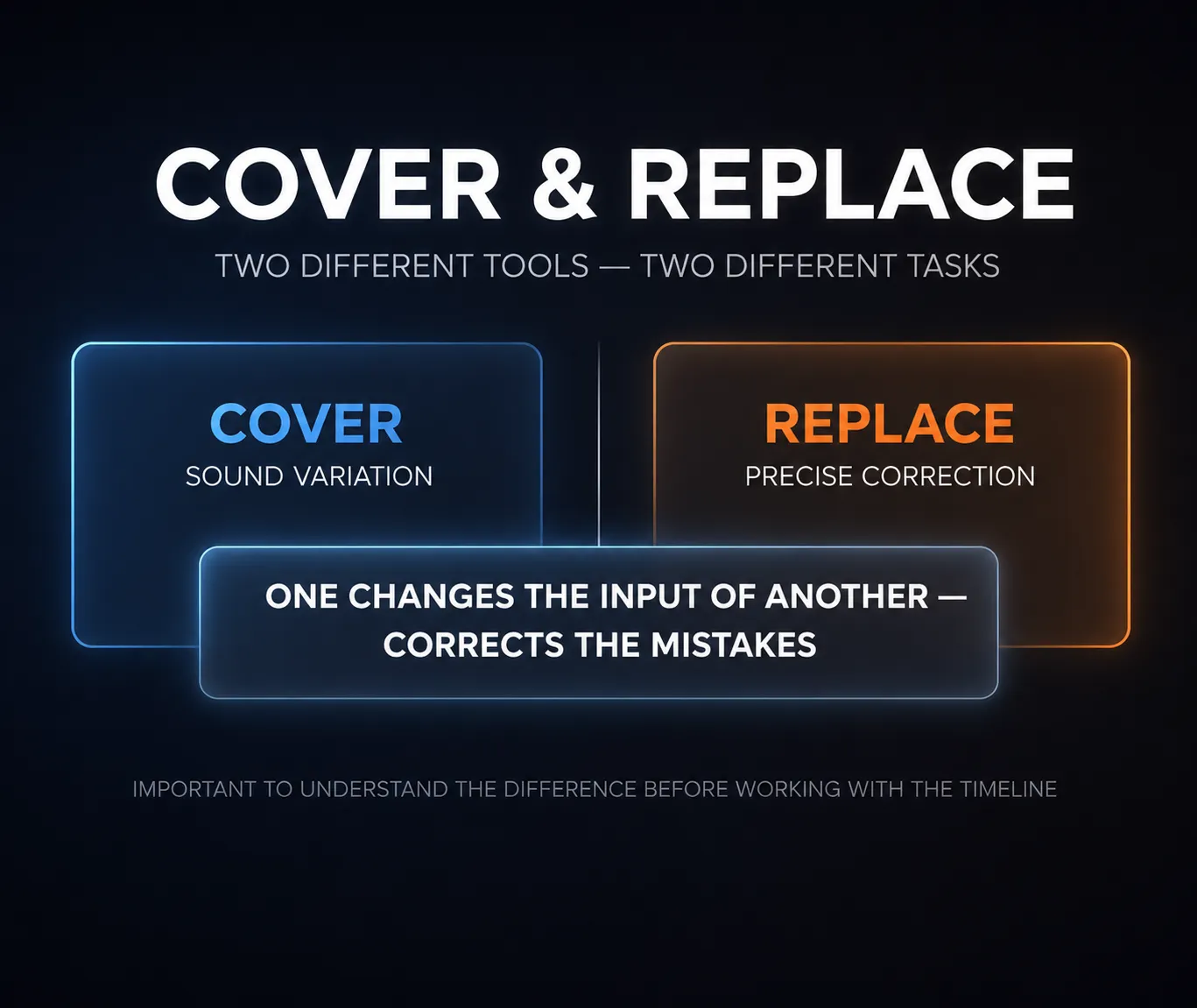
Cover — Variation
Use this when you love the melody but not the sound. For example: the chorus melody is perfect, but it's played on piano and you want guitar. Select the section, hit Cover, swap the instrument in the prompt. Suno will attempt to "drape" the new sound over the existing notes.
Replace — Context-aware substitution
The most powerful tool in Studio — and the one beginners most often overlook. Use this when the musical phrase itself is wrong, or there's an actual error.
How it works: Suno doesn't listen to what's inside the selection. It listens to what comes before and what comes after — and generates a bridge that joins those two pieces seamlessly. It's close to magic.
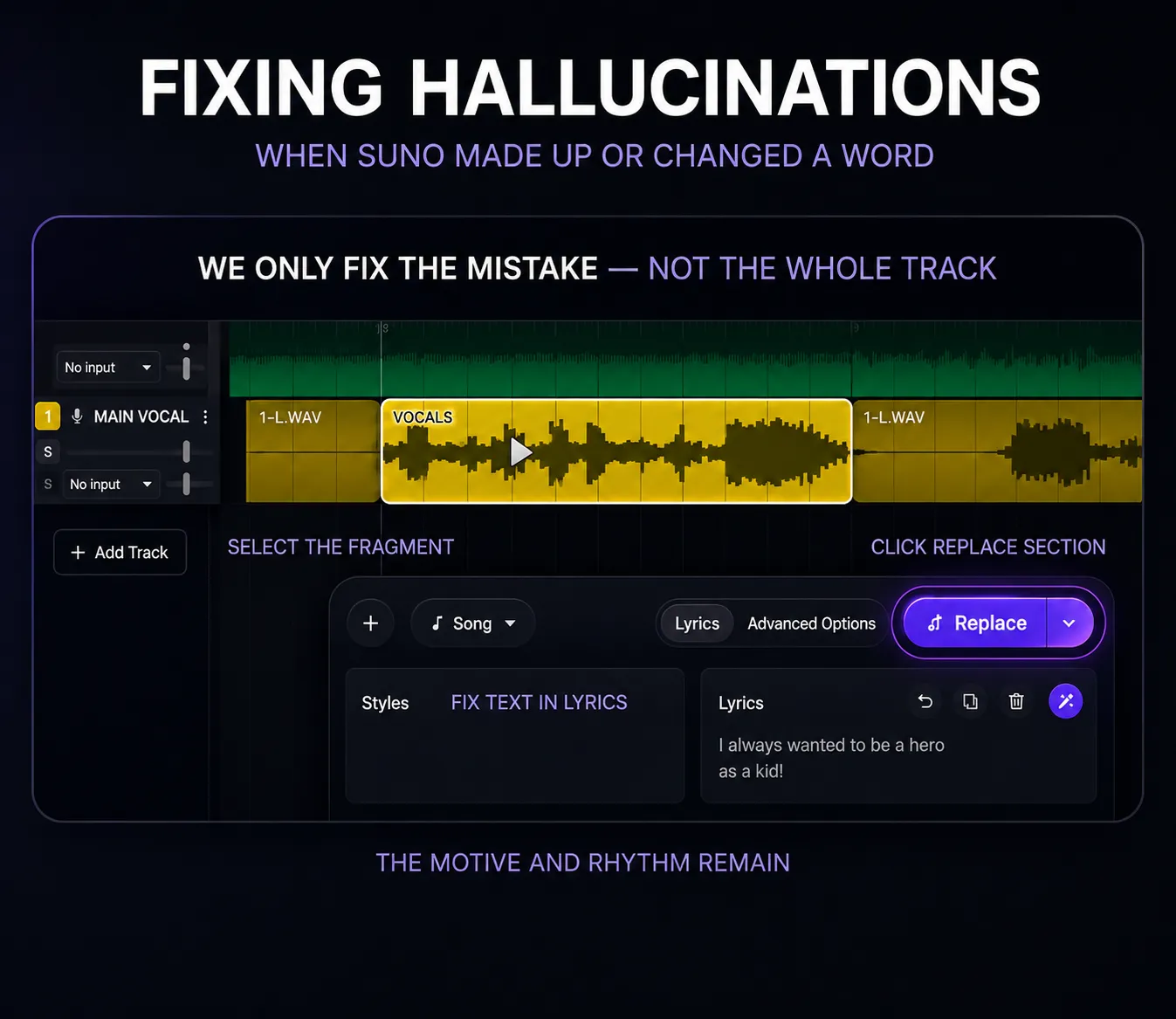
How to fix hallucinations
Hallucinations are when Suno sang an extra line, mangled a word, or inserted something completely unexpected. Don't throw the track away. Do this instead:
Select exactly the section with the error
Grab a small amount of clean audio on each side — that's the context.
Click Replace Section
Not just Replace — specifically Replace Section.
Fix the text in the Lyrics field
Correct only the line where the error occurred.
Hit Create
The model re-sings just that section, preserving the melodic and rhythmic feel of everything around it.
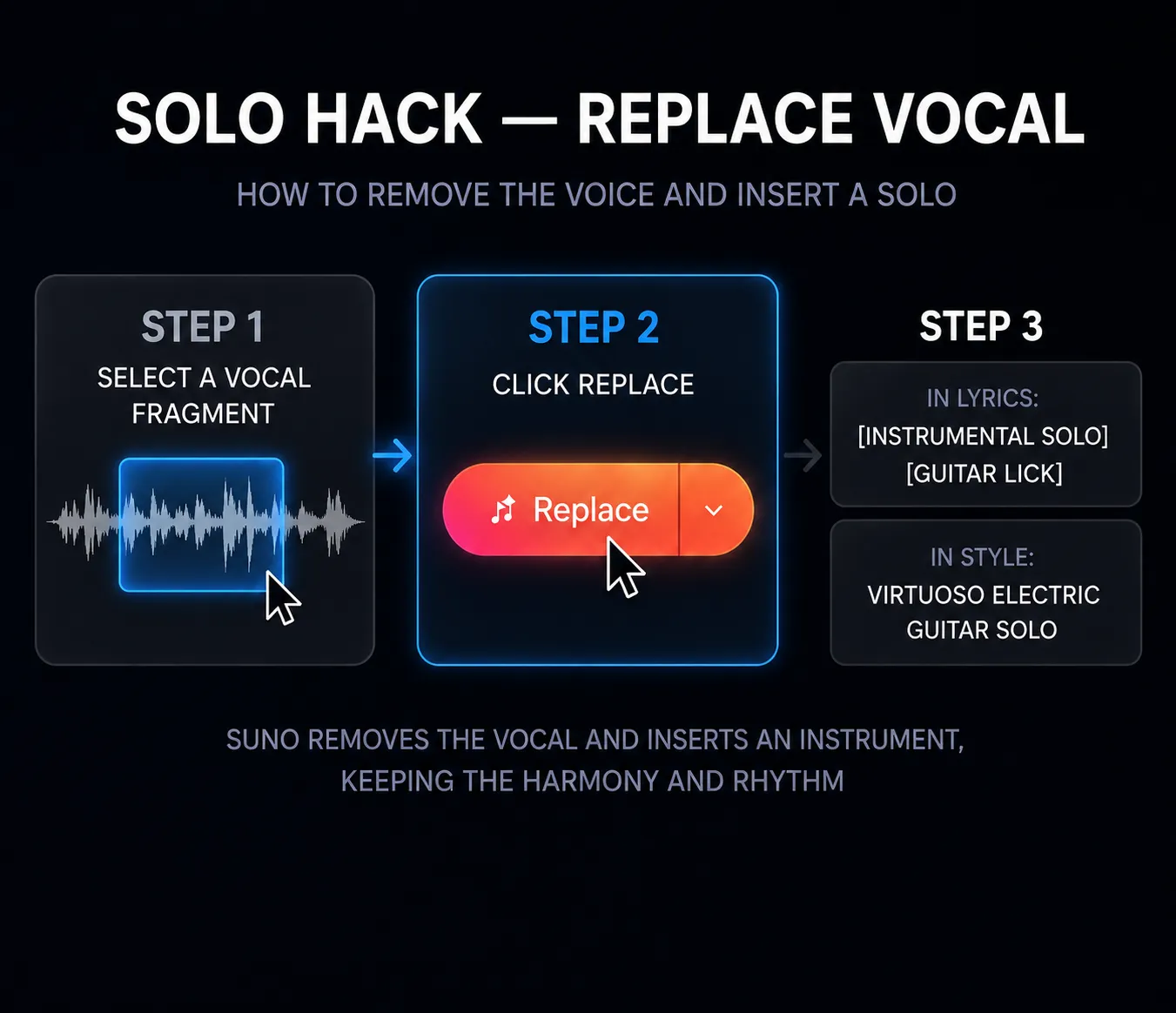
Solo Hack: pull the vocals and drop in an instrumental
A pro move. Common situation: you want a guitar solo after the chorus, but Suno stubbornly keeps singing more verses. Here's the fix:
Select the vocal section you want to remove
Click Replace
In the Lyrics field: [Instrumental Solo] or [Guitar Lick]
In the Style field: Virtuoso Electric Guitar Solo
The core shift: in Studio we stop being generators and become editors. We don't hope randomness gets it right — we correct it when it doesn't.
The Mixer in Studio — draft mode, not the finish line
A lot of people see the volume faders in Studio and think: "finally, I'll mix the track right here." Let's take the rose-tinted glasses off: the built-in mixer is a tool for checking your idea, not for achieving final quality. But there are a few genuinely useful things you can do with it.
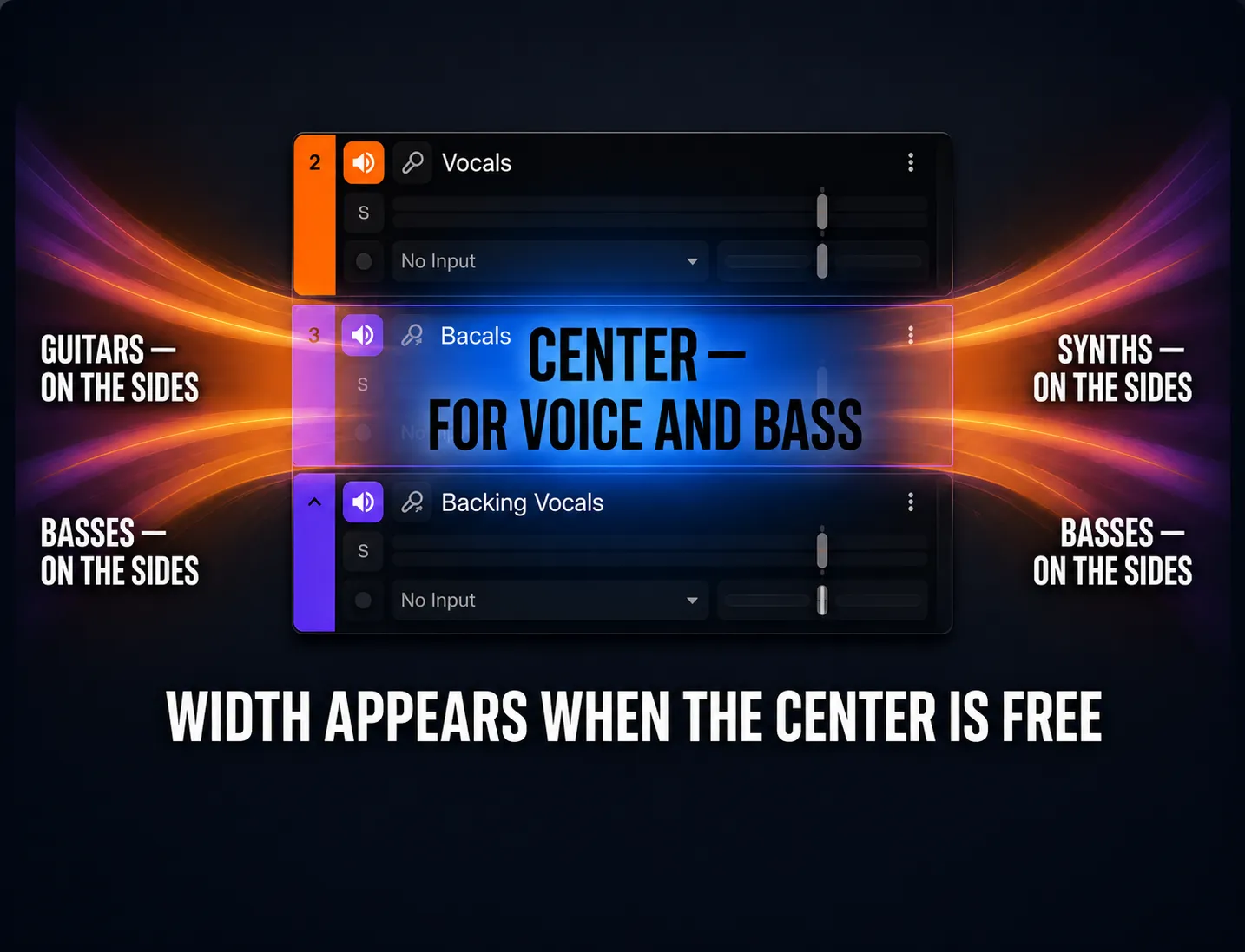
The golden rule of volume
Feel like the instruments are too quiet under the vocal? Don't turn them up. Do the opposite — turn the vocal down. In mixing, it's always better to pull back the loudest thing than to try and compete with it. This rule holds everywhere: in Studio, in your DAW, in life.
Pan: free up the center
The center of the stereo field is sacred space for the vocals and bass. Leave those alone. Everything else — guitars, synths, backing vocals — push to the sides. One instrument left, another right. This gives the track width and carves out space for the lead vocal to breathe instead of drown.
Pro Tip
The Studio mixer is for orientation, not the finish line. If something sounds wrong here — treat it as a signal to revisit the structure, not a reason to spend an hour tweaking faders. The final sound is born in professional mixing.
Field Notes from the Community
Everything above is my own workflow. But Studio is young, moving fast, and the collective experience of r/SunoAI is accumulating faster than any single person can test. I read those threads the way I read gear forums before buying hardware — skeptically, but thoroughly. Here is what keeps coming up, filtered through my own sessions.
The great stems debate
There is a genuine civil war over whether Suno’s own stem separation is good enough. One camp swears by external tools like Ultimate Vocal Remover with the htdemucs_6s model — more stems, arguably less damage. The other camp (and honestly, my testing leans this way) says no external splitter is consistently and noticeably better than Suno’s own. The lifehack that actually settles it: generate several sets of stems for the same track and cherry-pick the best take of each instrument — stem quality varies between renders, and the second pull is often cleaner than the first. Whichever tool you use, judge it on the stem that carries your song: vocals if it’s a vocal track, synths if it’s electronic.
Recreate and Replace are a re-roll, not an edit
The most common disappointment among new Studio users: hitting Recreate or Replace on a track and getting something wildly different from the original — different feel, different timing, sometimes a different instrument entirely. One engineer described replacing a piano and consistently getting a brass section no matter what the sliders said. Treat these buttons as controlled dice, not as an editor: duplicate the project before surgery, replace the shortest section you can get away with, and accept that two or three rolls is the norm, not a failure.
Watch the credit meter
A warning that shows up in almost every honest Studio review: every generation inside Studio costs credits — every alternate, every replaced section, every experiment, regardless of length. People burn through a monthly allowance in a weekend of enthusiastic tinkering. My rule: decide what you are fixing before you open the project, fix exactly that, and get out. Studio rewards surgeons, not browsers.
The pattern that actually ships
Talk to the people actually releasing tracks and a consistent picture emerges: Studio is the assembly room, not the finish line. The workflow that keeps producing results — assemble the structure in Studio, export stems, then rebuild in a real DAW: replace some of the generated sounds with your own, fix timing and pitch, add your own transitions and space. As one producer put it, once you’ve swapped enough sounds and added your own design, nobody can tell the track started as AI. That matches my experience — and it’s exactly why this guide treats Export as the most important chapter.
The 48-hour rule
The least technical tip and possibly the most valuable one, straight from a veteran thread on making AI tracks sound professional: walk away from the song for a couple of days, then listen again after the initial dopamine rush has worn off. Fresh generations all sound amazing at 1 a.m. The ones that still sound amazing on Monday are the ones worth spending Studio credits and mixing hours on.
Pro Tip
Studio is barely a year old and gets patched constantly — half of the complaints you will find in six-month-old threads are already fixed, and half of the tricks are already obsolete. Check the date on any Studio advice before trusting it. Including, in fairness, this section.
Export — the final step with hard rules
The last step is simple, but it has a few rules that directly affect quality.
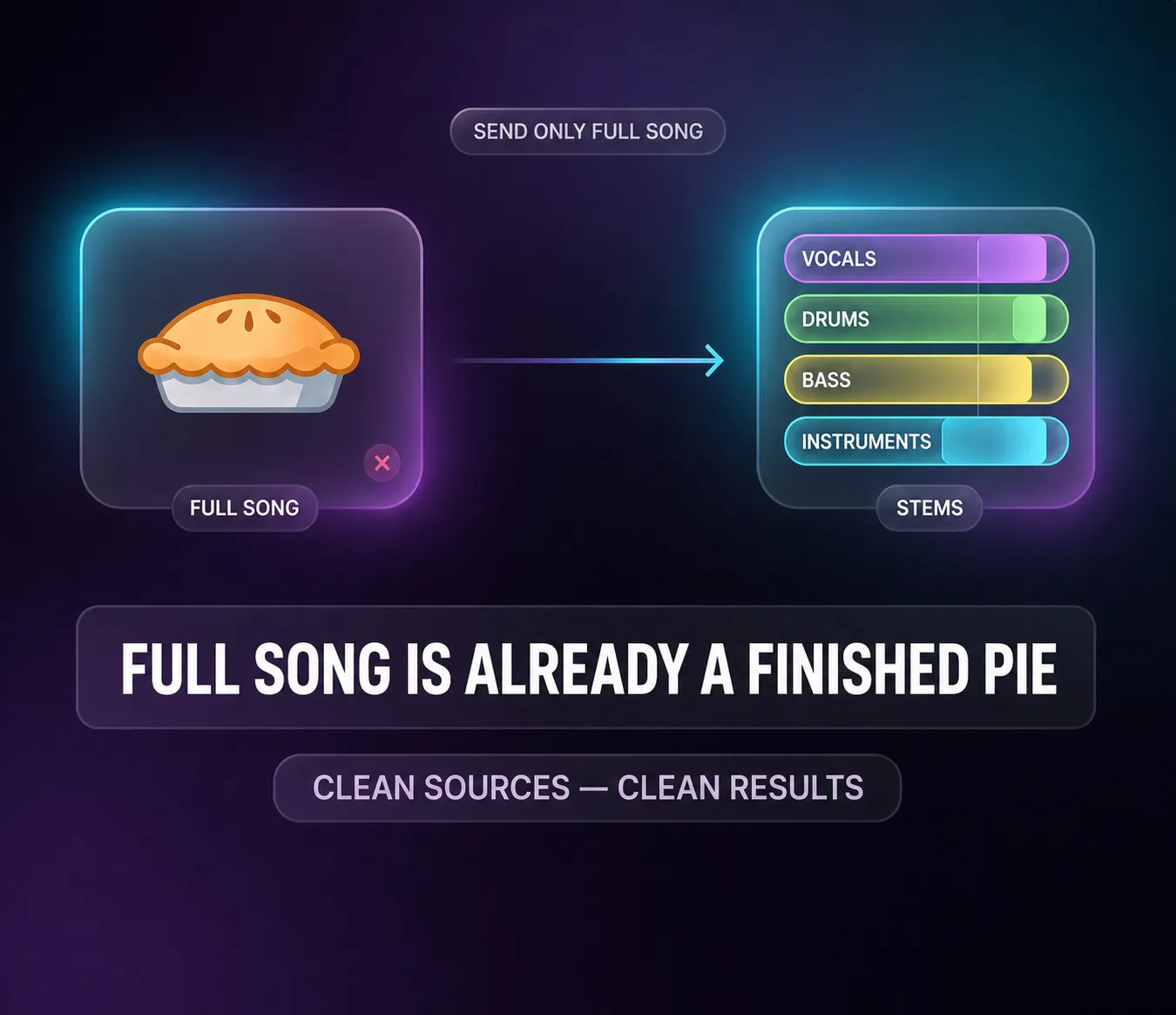
⚠️ Why you can't only hand over Full Song
Think of Full Song as an already-baked cake. A mixing engineer can try to "unbake" it with specialized software — but that's extra work, and the quality inevitably takes a hit. Why accept a result with artifacts and smearing when you could just hand over the clean individual ingredients to begin with?
Export Multitrack (Stems)
In the Export menu, always choose Multitrack (Stems). Suno will give you an archive with every instrument on its own track: Vocals, Drums, Bass, Instruments. Give your engineer two things: Full Song (so they can hear the vision) and Multitrack Stems (so they can work on the parts). Only with separate tracks can a professional clean up the noise and assemble something truly polished.
WAV only — forget MP3 exists
MP3 is a compressed format for rough drafts and streaming. In the Audio menu, select WAV only. Suno already bakes in digital noise during generation — MP3 compression will amplify it. We want the cleanest possible source file for everything that comes next.
Note the BPM — before you close the browser
Look at the BPM displayed at the bottom of the screen and write it down. When you open your DAW, set that exact tempo first — then import the files. That way the rhythmic grid aligns perfectly and the stems sit exactly where they should.
Exporting stems from Studio is the clean route, because the parts were never baked together in the first place. When a song is already finished and you need the instrumental pulled back out of it, that's the other job — rebuilding a Suno track from regenerated stems goes through Advanced Split and the DAW reassembly.
Quick reference — the whole guide on one card
| Task | Tool |
|---|---|
| Build a track structure | Timeline |
| Extend with intention | Extend + correct Timestamp |
| Write a prompt that works | G.M.I.V. Formula |
| Change the sound, keep the melody | Cover |
| Fix a single error surgically | Replace |
| Pull vocals, insert an instrumental solo | Solo Hack |
| Prepare files for your DAW | Stems + WAV + BPM |
Suno Studio doesn't make music for you. It gives you an environment where you make the decisions. The better you understand what's controllable here — the more predictable the result.
Pre-export checklist
Tap each item to mark it done
You're no longer just a user
What's sitting on your drive now isn't a file — it's a disassembled project, part by part. You're no longer the person who hits Generate and prays. You're a producer with clean stems ready for a serious mix.
Timeline, Extend with the right timestamp, the G.M.I.V. formula, Cover and Replace, stems in WAV — this isn't a feature list. It's a workflow where every step is deliberate.
Go make something.
Not sure what your track needs?
Send it and hear a free 60-second preview — an honest assessment and an exact price, no commitment.
Get a Free Preview →Made a track in Suno? I'll finish it to release quality — from $39.
Want your track to sound like this?
Send it in and get a free preview — hear the difference on your own song before you pay anything.
Get a free preview →