Pro Tools vs Studio One
Which DAW is actually better for mixing and mastering? A detailed comparison from someone who has used both extensively — and switched between them more than once.
Pro Tools vs Studio One: The Overview
Pro Tools has been the industry standard for decades. Studios around the world run on it. If you walk into a professional recording studio anywhere in the world, the chances are high that you will see Pro Tools on the screen. That reputation is earned — Pro Tools built its dominance in an era when it was genuinely ahead of everything else.
But the landscape has changed. Studio One has quietly become one of the most capable DAWs available — and for many engineers, it has become the smarter choice. Not because Pro Tools is bad, but because Studio One does most things faster, with fewer steps, and with a workflow that gets out of the way and lets you focus on the music.
This comparison covers the areas where the difference between these two DAWs matters most in real-world mixing and mastering work.
Update — the 2026 versions
Studio One is now Fender Studio Pro 8. After Fender acquired PreSonus, the DAW was rebranded in early 2026, dropping the PreSonus name. It's the direct successor to Studio One 7 — the same engine and the same workflow advantages described below, plus added Fender amp and effects plugins. Most engineers still call it "Studio One" out of habit, so that's the name used throughout this article.
Pro Tools is now on the 2026 cycle (latest: 2026.4, April 2026). Avid added Track Pin for navigating large sessions, MPEG-H immersive support, Dolby Headphone personalization, and a bundled Massive X Player. The immersive workflow keeps improving — but the integration and workflow points below still hold.
1. Drag-and-Drop Plugin Chains: The Workflow Game Changer
One of the first things that changes the way you work when switching to Studio One is the ability to drag and drop entire plugin chains from one track to another. If you mix frequently, you know how much time gets wasted manually copying effects — plugin by plugin — from one track to the next.
In Studio One, the process is seamless. A vocal chain with an EQ, a compressor, and a de-esser can be grabbed and dropped onto any other track in seconds. The same applies to send effects. You can even select multiple tracks and drop an entire plugin chain across all of them at once — an absolute time-saver when working with stacked background vocals or layered guitars.
In Pro Tools, copying a plugin chain means clicking each plugin individually, option-dragging it to the new track, and repeating the process for every plugin in the chain. For sends, there is no simple way to move them all at once. In a large mix with dozens of tracks, these small inefficiencies add up quickly and interrupt the creative flow.
2. Send and Return Creation: Four Steps vs One
Creating send and return tracks is something that happens on almost every mix — for reverb, delay, or parallel compression. In Studio One, adding a reverb send is as simple as dragging a plugin from the browser and dropping it onto the send section of a track. Studio One automatically creates a new effects track, inserts the plugin, and routes the send properly — all in one step.
In Pro Tools, the same task requires manually creating an aux track, assigning a send from the original track, opening the aux track, inserting the plugin, and adjusting the send level. That is four separate steps for something Studio One handles in one. In a session with many effects returns, this difference becomes significant.
Studio One also lets you double-click a send to instantly open the corresponding plugin — no scrolling through the session to find the effects track.
3. Event Effects vs AudioSuite: Non-Destructive Wins
Pro Tools has long offered AudioSuite processing — the ability to apply an effect directly to a selected portion of audio without using a real-time plugin. The problem is that AudioSuite is destructive. Once the audio is processed, undoing it requires reloading the original file or working around it manually.
Studio One handles this with Event Effects — clip-based processing that is completely non-destructive. A high-pass filter can be applied to a single word in a vocal take, rendered if needed, and still undone or tweaked later without starting over. For anyone working with dialogue, vocal edits, or detailed sound design, this flexibility changes how you approach the work.
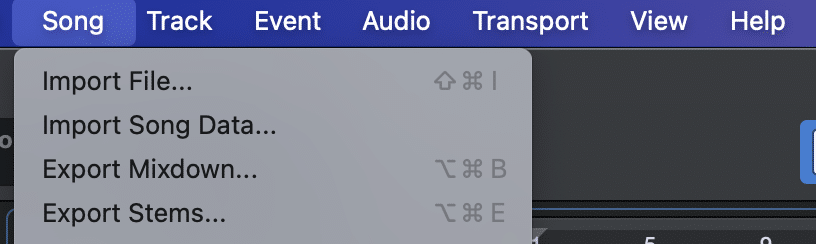
4. Exporting Stems: Built-In vs Non-Existent
Exporting stems is a standard part of professional mixing work — for client deliverables, live performance preparation, or remix packages. Studio One has a dedicated stem export feature built directly into the software. Select the tracks, choose whether to export with or without processing, name the files, set the format, and export. All stems render simultaneously.
In Pro Tools, there is no built-in stem export. The process requires setting up the session in a specific way and bouncing tracks one by one, or using workarounds that add significant time to what should be a straightforward task. For a DAW that has been the industry standard for decades, the absence of a proper stem export function is genuinely difficult to justify.
If arrangement and production work is part of your workflow, the ability to export clean stems quickly becomes essential rather than optional.
5. Track Grouping: Intuitive vs Inflexible
In Studio One, selecting multiple tracks and adjusting their levels together requires no setup. Highlight the tracks, move one fader, and they all adjust. After making a group adjustment, individual tracks within the selection can still be tweaked independently without disabling anything.
In Pro Tools, adjusting multiple tracks together requires creating a named group first — clicking through menus, naming the group, setting parameters, and locking the tracks together. Making an adjustment to a single track within the group then requires temporarily disabling the group, making the change, and re-enabling it. This friction adds up over the course of a long mixing session.
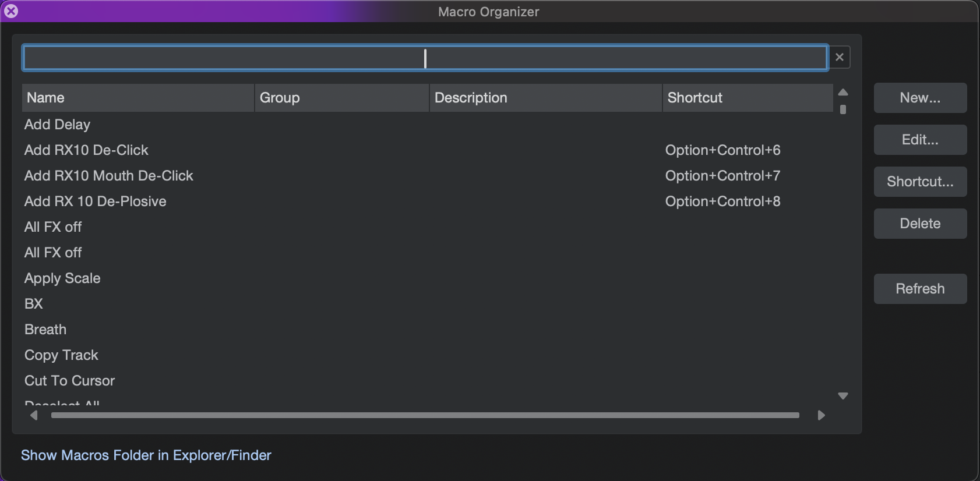
6. Macros: Automating Repetitive Tasks
Studio One includes a Macro system that allows any multi-step task to be bundled into a single keyboard command. A reverse reverb effect that would normally require five separate steps in Pro Tools can be executed in Studio One with one click. Custom macros can be built for any repeated workflow — duplicating tracks with settings, creating sidechain setups, preparing stems for export.
Pro Tools has no equivalent native feature. Engineers who want similar functionality in Pro Tools need to use a third-party application — an additional cost for something Studio One includes by default.
7. Unlimited Undo: The Detail That Matters More Than You Think
In Studio One, undo applies to everything — plugin changes, automation adjustments, send routing, parameter tweaks inside plugins. An Undo History panel allows scrolling back through every change made in the session and restoring any previous state.
In Pro Tools, undo is significantly limited. Adding or removing a plugin cannot be undone. Tweaking a parameter inside a plugin and then changing your mind means manually resetting it. For an application that professionals depend on for critical work, this limitation has persisted for years without resolution.
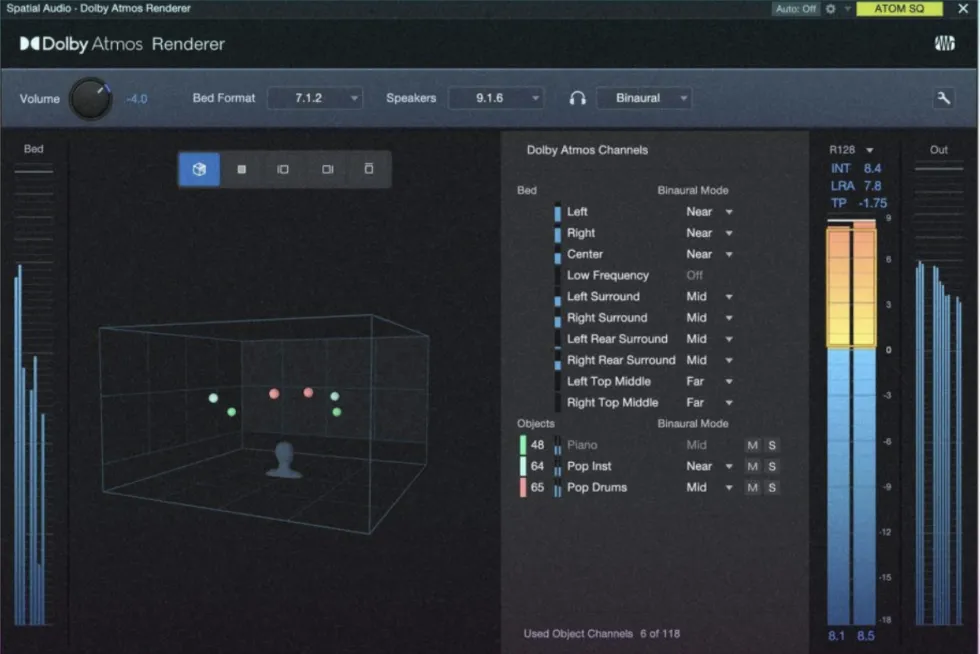
8. Dolby Atmos: Native vs Complicated
Studio One was the first DAW to natively support Dolby Atmos mixing. The entire Atmos workflow — from spatial placement to final export — happens inside Studio One without any additional software or complex routing setup.
In Pro Tools, Atmos mixing has historically required the separate Dolby Atmos Renderer application, a complex routing configuration, and manual file management to check and deliver the final mix. While Avid has worked to improve this, the process remains more involved than Studio One's integrated approach.
As immersive audio becomes a standard part of music delivery on platforms like Apple Music, the ability to handle Atmos efficiently inside a single DAW is increasingly relevant to professional mixing and mastering work.
Final Verdict
Both DAWs can produce professional results. Pro Tools remains widely used in large studios and post-production environments where its specific strengths are valued. But for mixing engineers focused on speed, workflow efficiency, and modern features, Studio One consistently delivers a better experience — fewer steps, more flexibility, and a design that prioritizes the work rather than the software.
If you have been using Pro Tools out of habit rather than necessity, Studio One is worth a serious look.
Ready to send your track for professional mixing?
Whatever DAW you use to record — the final result is what matters. First consultation is always free.
Get in Touch →Want your track to sound like this?
Send it in and get a free preview — hear the difference on your own song before you pay anything.
Get a free preview →