How to Export Stems and Prepare Your Track for Mixing
A practical, no-gatekeeping guide to sending music to a mixing engineer: formats, headroom, stems from any DAW, file naming and delivery - plus what to do when all you have is a phone recording. Free one-page PDF checklist included.
Let's get one thing out of the way first: you can send me anything. A voice memo from your phone, a noisy rehearsal recording, a ten-year-old mp3, a Suno export - all of it is a valid starting point, and none of it needs to be "fixed" before I hear it.
So why does this guide exist? Because preparation isn't a gate - it's a multiplier. The same song, sent two different ways, can give me two very different amounts of room to work. Every minute I spend un-breaking a crushed export or guessing which of five files is the right one is a minute I'm not spending on your sound. Ten minutes of prep on your side regularly buys an audibly better result for the same money.
Below is everything that actually matters: formats, the one limiter mistake almost everyone makes, how to export stems from any DAW, naming, and how to send it all. If you'd rather have this as a one-page cheat sheet next to your DAW, there's a free PDF checklist at the end.
The Only Rule: Send What You Have
Plenty of studios publish "submission requirements" that read like customs declarations, and plenty of musicians never send their song anywhere because of them. My rule is the opposite and it's the only one on this page that has no exceptions: the version you have right now is good enough to send.
- A phone recording of you and a guitar? Send it.
- A rehearsal-room take with the drums too loud? Send it.
- An old mp3 of a song you never finished? Send it.
- An AI-generated track that almost sounds right? Send it.
I'll listen and tell you honestly what can be done with it and what it would cost - that assessment is free and doesn't obligate you to anything. Everything below this point is simply how to give me more to work with when you can.
Pro Tip
If you're hesitating between sending a rough version today and a "properly prepared" one someday - send the rough one today. Momentum finishes more songs than perfectionism ever has.
Files and Formats: WAV Beats Everything
When you do have a choice, here's the order of preference and the settings that matter:
- WAV (or AIFF), 24-bit. Lossless formats keep everything your project had. 24-bit is the studio standard; 16-bit is acceptable, 32-bit float is also perfectly fine if that's what your DAW offers.
- Keep the project's sample rate. If your session is 44.1 kHz, export 44.1; if it's 48, export 48. Converting up to 96 kHz adds nothing except file size - and converting down throws information away.
- Never convert mp3 to WAV. It doesn't restore lost quality - it just hides what the file really is. If an mp3 is all you have, send the mp3 itself, ideally the highest-bitrate original you've got.
- Export the full length. Start from the very beginning and let the last chord's reverb tail ring out completely before the export ends. Cut-off tails are the most common tiny heartbreak in this job.
Kill the Limiter, Keep the Headroom
If you remember exactly one technical thing from this page, make it this one. Before exporting a mix for mixing or mastering, switch off every limiter, maximizer and clipper on your master bus. A limiter squashes the peaks of your music to make it loud - and that squashing cannot be undone on my side. Sending a limited file is like mailing a letter that's already been shredded: the content is technically there, but nobody can work with it.
- Leave 3-6 dB of headroom - the loudest moment of the song should peak somewhere around -6 to -3 dB on your master meter.
- Don't normalize the export and don't "gain up" the file to look louder. Quiet is fine. Quiet is good.
- EQ and compression on individual tracks can stay if they're part of your sound - it's only the master-bus loudness processing that has to go.
Your export will sound quieter than commercial releases. That's not a bug - loudness is literally what you're hiring me for.
Pro Tip
Quick self-check: if your exported file peaks around -6 dB and sounds noticeably quieter than Spotify tracks, you did everything right. If it's slammed against 0 dB and sounds "finished", a limiter is still on somewhere.
Stems: How to Export Them from Any DAW
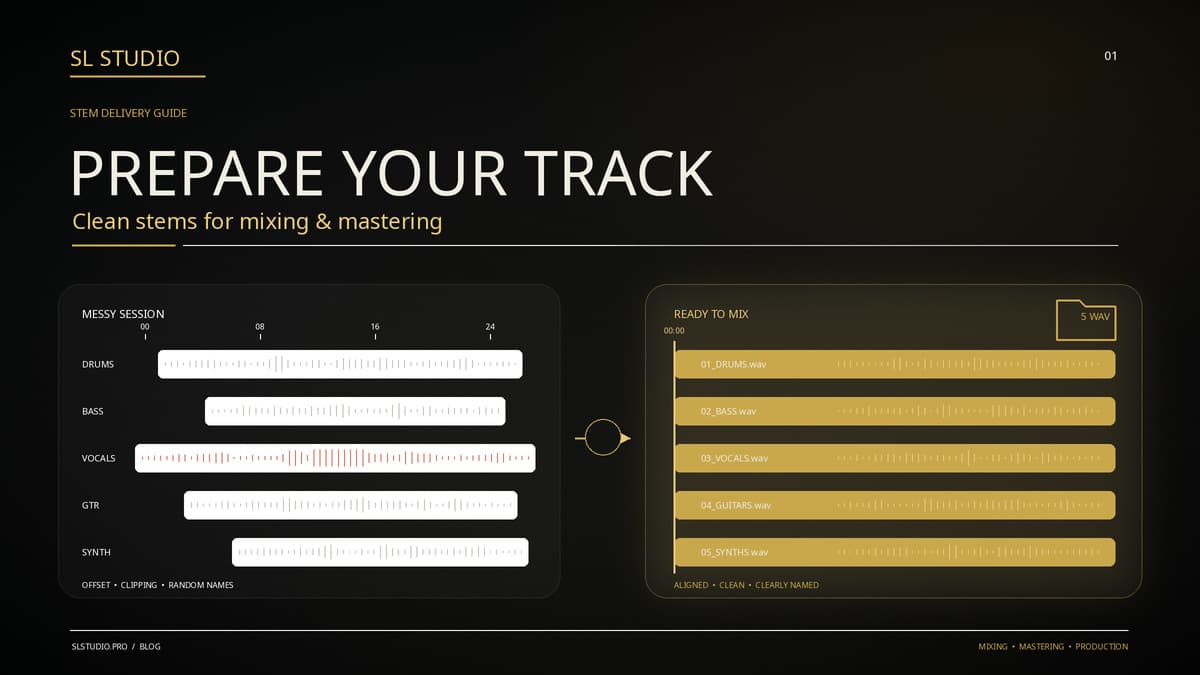
Stems are your mix exported in groups: drums as one file, bass as another, guitars, vocals, synths, effects - each printed separately, all the same length. They're the difference between me working around a problem and fixing it. Four rules apply in every DAW:
- Every stem starts at bar 1 (0:00) - even if the instrument enters three minutes in. Same start, same length, for every file. This is what makes them line up on my side.
- Keep your creative processing. If a crushed drum bus or a telephone-EQ vocal is part of the sound, print it. When in doubt, export two versions - wet and dry - and label them.
- Master bus stays empty - same rule as before: no limiter, no "glue" on the stereo output while printing stems.
- 6-12 stems is plenty for most songs. Kick, snare, rest-of-drums, bass, guitars, keys, lead vocal, backing vocals, FX - that level of detail covers 95% of what mixing needs.
Here's where the export lives in the big four DAWs:
- FL Studio: File → Export → WAV, then enable "Split mixer tracks" in the export dialog. Every mixer track becomes its own file in one pass.
- Ableton Live: File → Export Audio/Video, set "Rendered Track" to All Individual Tracks, choose WAV 24-bit and render.
- Logic Pro: File → Export → All Tracks as Audio Files - check "Include Volume/Pan Automation" and pick 24-bit WAV.
- Reaper: File → Render, set Source to Stems (selected tracks), select your track folders, render at 24-bit.
Pro Tip
Sanity check before sending: drag all your stems into a blank project, don't touch a single fader and press play. If it sounds exactly like your mix, the export is correct. If something is missing or doubled - better you find out than me, three days later.
Naming Files So Nothing Gets Lost
You'd be amazed how much studio time worldwide is spent figuring out whether final_FINAL_v3_thisone.wav is newer than final_v3_FINAL_real.wav. Thirty seconds of naming discipline solves it forever:
- Folder: Artist_SongTitle_120bpm_Am - artist, song, tempo and key in the folder name answers half of my first-day questions.
- Stems: numbered and obvious - 01_Kick, 02_Snare, 03_Drums_Rest, 04_Bass, 05_Gtr_L, 06_Gtr_R, 07_LeadVox, 08_BVs, 09_FX. No inside jokes, future-you won't remember them either.
- One song = one zip. Zip the folder before uploading - nothing gets lost in transfer, and I get your file structure exactly as you made it.
Phone Demos, Rehearsal Takes and AI Tracks
Now the cases the "requirements pages" never mention - which happen to be half of what lands in my inbox.
Phone and rehearsal recordings. Two things matter. First: send the original file from the phone, not a messenger forward - WhatsApp and Telegram voice messages re-compress audio brutally, and that damage is permanent. Email it to yourself or upload straight to Drive. Second: don't "help" the recording with enhancement apps or EQ before sending - every automatic cleanup throws away information I could have used better.
Suno and other AI tracks. Download the best quality the platform offers - WAV if your plan includes it - and grab the stems too if the platform can export them. Attach the lyrics and one honest sentence about what bothers you in the sound ("the chorus feels thin", "the vocal is harsh"). If you're curious what a human engineer actually changes in an AI track, I ran a public blind test on exactly that question.
How to Send It (and What to Write)
No portals, no accounts: WeTransfer (free up to 2 GB, no registration) or a Google Drive folder link is all it takes. Zip first, then upload, then open your own link in an incognito window to make sure it works without logging in.
In the message itself, five lines beat five paragraphs:
- What the song is and what you need (mix? master? both?)
- One or two reference tracks whose sound you love
- What bothers you in the current version
- Your deadline, if you have one
- The download link
Send it through the contact page - and if you want to hear what I'd do with your track before spending anything, the free preview exists for exactly that.
Get the Track Prep Checklist (PDF)
One page, print-friendly: formats, limiter, stems, naming, sending. Drop your email and the download unlocks right here.
FAQ
Do I really need stems, or is a stereo mix enough?
A stereo mix is enough to start - for mastering it's all I need, and for a mix assessment it's plenty. Stems simply give me more control: I can rebalance the vocal, fix the low end or replace a weak drum sound instead of working around it. Send what you have; if stems would genuinely change the result, I'll tell you before any money changes hands.
What if all I have is an mp3 or a voice-memo recording from my phone?
Send it. I say this without irony: phone demos, rehearsal-room recordings and old mp3s are a normal starting point here, not an embarrassment. I'll tell you honestly what can be achieved with it - sometimes the answer is a surprisingly good restoration, sometimes it's advice on how to re-record one part cheaply. Either way you lose nothing by asking.
What WAV settings should I export?
24-bit WAV at the sample rate your project already uses (44.1 or 48 kHz - don't convert it). Turn off any limiter or maximizer on the master bus, leave roughly 3-6 dB of headroom, and export the full length including the reverb tail at the end.
Can I send a Suno or other AI-generated track?
Yes - AI-generated tracks are a normal part of my workload. Send the highest-quality export the platform gives you (WAV if available), plus the lyrics and a note about what bothers you in the sound. If the platform offers stem downloads, grab those too - they help a lot.
How do I send large files?
WeTransfer (free up to 2 GB, no account needed) or a Google Drive folder link work perfectly. Zip your stems folder first so nothing gets lost, double-check the link opens in an incognito window, and send it through the contact page with a couple of lines about the song.
Want your track to sound like this?
Send it in and get a free preview — hear the difference on your own song before you pay anything.
Get a free preview →